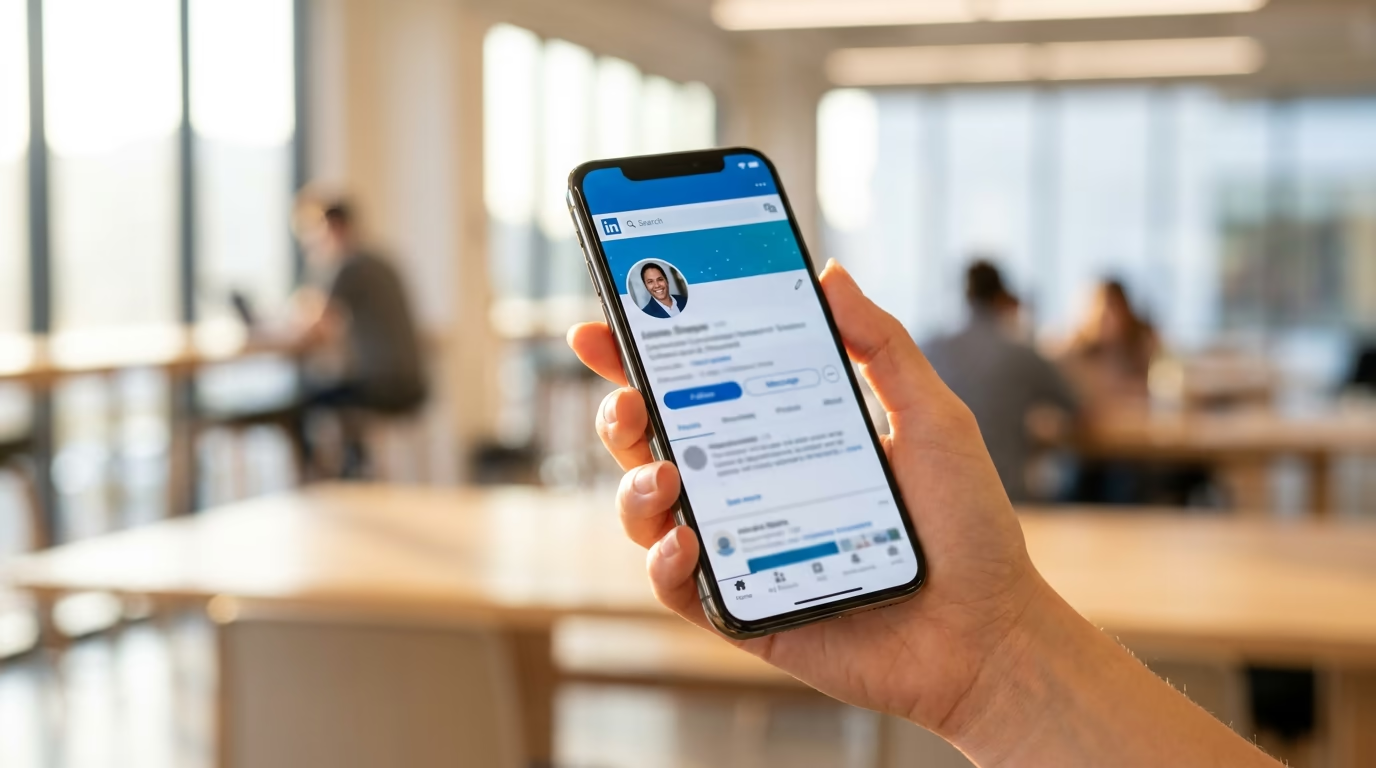
Your LinkedIn profile picture is the smallest image on the platform that does the most work. It appears next to every post you publish, every comment you leave, every message you send, and every search result where your name shows up. When someone scrolls their feed and spots your content, your profile picture is the first visual cue that tells them whether to stop or keep scrolling, and that split-second reaction compounds across hundreds of impressions every week.
LinkedGrow is an AI-powered LinkedIn content platform, so we spend a lot of time studying what makes profiles convert visitors into connections and clients. This article covers the exact dimensions you need, a practical phone photography setup you can do at home in 15 minutes, the background color research most guides skip, attire rules by industry, AI headshot options, and the mistakes that cost people profile views every day. If you're optimizing your full profile, pair this with the LinkedIn profile optimization checklist so your photo, headline, and About section all reinforce the same message.
Why does your LinkedIn profile picture matter so much?
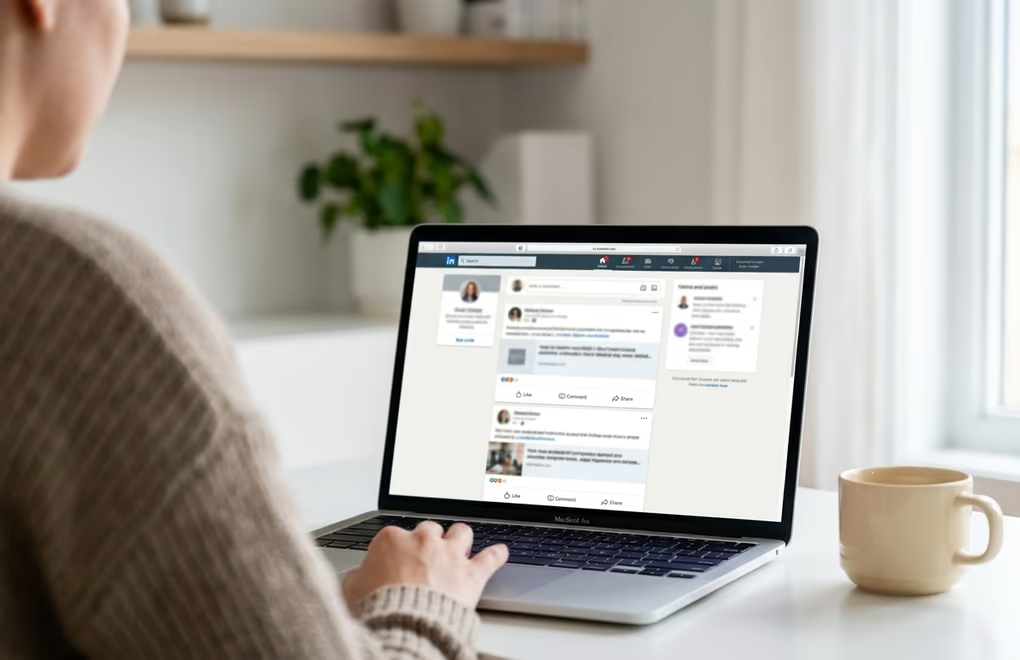
LinkedIn profiles with a photo receive up to 14 times more views than profiles without one, according to LinkedIn's own data. That number has circulated for years, and the platform has only become more visual since. Profiles with professional photos also receive roughly 36 times more messages, which matters if you use LinkedIn for business development, recruiting, or building an audience.
But the profile picture doesn't just sit on your profile page. It follows you everywhere on LinkedIn. When you publish a post, your photo appears as a 48-pixel circle in the feed next to your name and headline. When you comment on someone else's post, it's there again. When you send a connection request, the recipient sees your photo before they read your message. For content creators and founders who post regularly, the profile picture becomes a recognition signal that people learn to associate with your ideas, and that association is worth more than most people realize.
The connection request stage is where your photo has the most immediate impact. When you send a request to someone who doesn't know you, the first thing they see is your profile picture, your name, and your headline. If the photo looks professional and trustworthy, they're more likely to accept. If it looks like a cropped vacation photo, a blurry selfie, or the default gray silhouette, they skip you without a second thought. This is especially true for social selling on LinkedIn, where your ability to start conversations depends entirely on making a credible first impression at scale.
A study from PhotoFeeler that analyzed thousands of headshot ratings found that the top-scoring LinkedIn photos shared 3 consistent traits: the subject's face filled most of the frame, the expression was a natural closed-lip or slight smile (not a toothy grin), and the lighting came from the front or slightly above. None of the top-rated photos used selfie angles, group crops, or heavy filters. The takeaway is straightforward: a simple, well-lit photo of your face outperforms anything clever or artistic every time.
What size should your LinkedIn profile picture be?
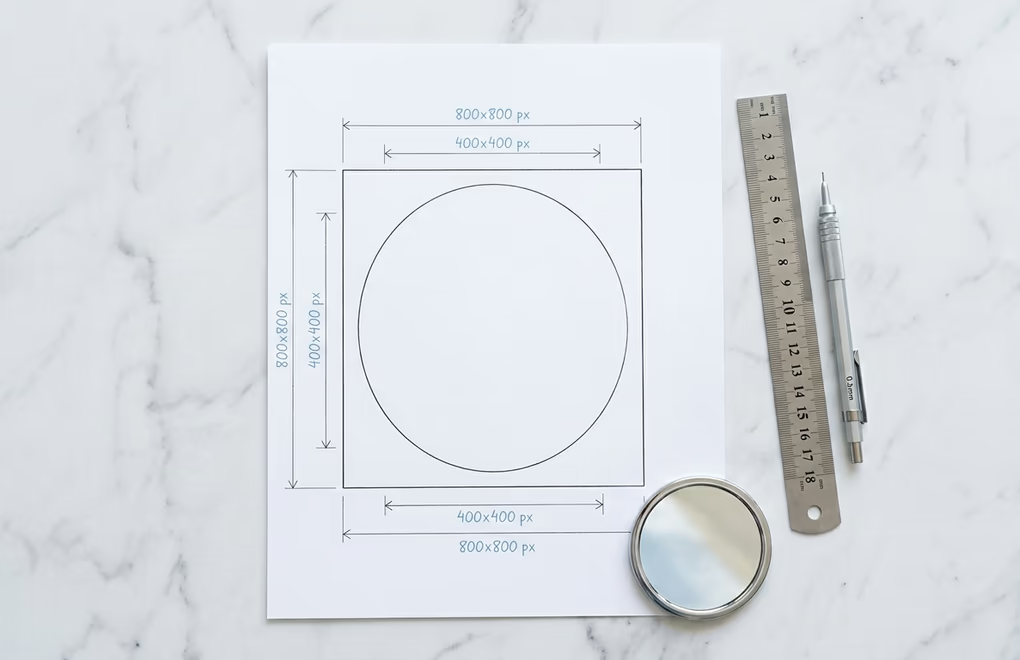
LinkedIn displays profile pictures at 400 x 400 pixels and crops them into a circle. You should upload an image that is at least 800 x 800 pixels so that LinkedIn can downscale it cleanly without any visible softening. Uploading a smaller image forces LinkedIn to stretch it, which creates the blurry, low-resolution look that immediately signals a neglected profile.
| Specification | Value |
|---|---|
| Display size | 400 x 400 px (circle crop) |
| Recommended upload | 800 x 800 px or larger |
| Maximum file size | 8 MB |
| Accepted formats | JPEG, PNG |
| Aspect ratio | 1:1 (square) |
| Face coverage | 60-70% of the frame |
LinkedIn doesn't support WebP, AVIF, GIF, or SVG for profile pictures. Stick with JPEG for photographs (smaller file size, fine quality) or PNG if your image has sharp edges or transparent elements in the original. If your file is over 8 MB, export the JPEG at 85-90% quality, which almost always drops the size below the limit without any visible loss.
Because LinkedIn crops every profile picture into a circle, the corners of your square image get cut off. Keep your head and shoulders well within the center of the frame, and avoid placing anything important near the edges. If you want to check how the circular crop will look before uploading, open the image in any photo editor, draw a circle inscribed inside the square, and everything outside that circle will be hidden. LinkedGrow's free LinkedIn image sizes reference covers dimensions for every image type on the platform, including banners, carousels, and ads, if you need a single resource for all of them. For a deeper look at feed post dimensions specifically, the LinkedIn post image size guide breaks down exact pixels for single-image, multi-image, and link preview formats.
How do you take a professional LinkedIn photo at home?
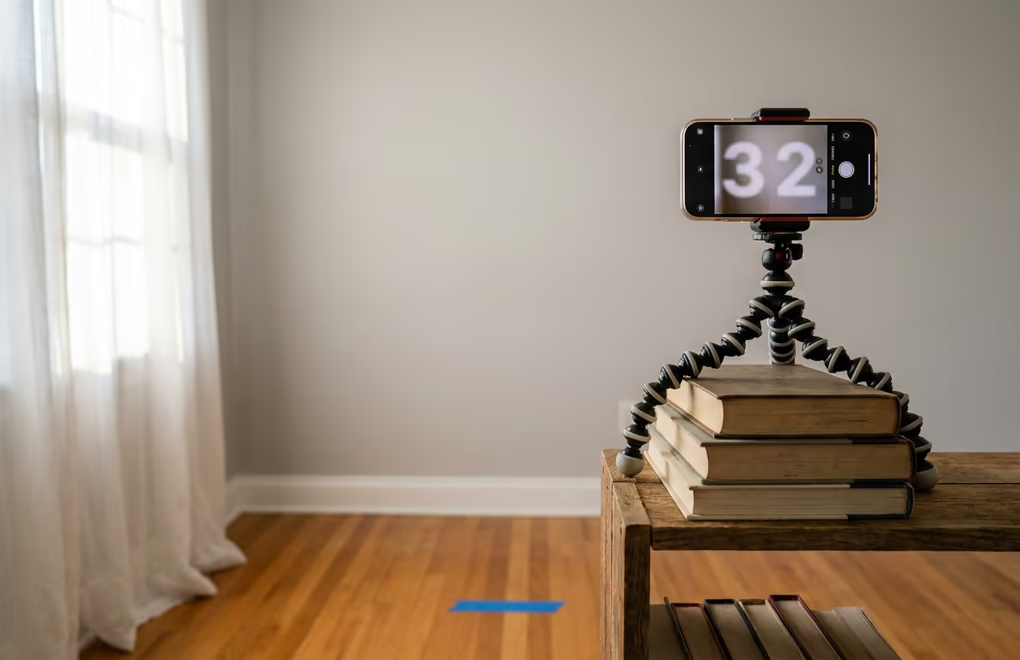
You don't need a professional photographer to get a headshot that looks polished on LinkedIn. A recent smartphone (anything from the last 4-5 years), a window, and a plain wall are enough. The key is controlling 3 variables: light direction, background, and camera angle. Get those right and the phone's camera does the rest.
Light. Stand facing a large window during mid-morning or mid-afternoon when the sun isn't shining directly through the glass. You want soft, diffused daylight hitting the front of your face evenly, not hard sunlight that creates harsh shadows under your nose and eyes. If the window faces south and the sun is blasting through it, hang a white sheet or thin curtain over it to soften the light. Avoid overhead ceiling lights entirely because they cast downward shadows that age your face and make you look tired.
Background. Position yourself about 3 feet (roughly 1 meter) in front of a plain wall. A white, light gray, or off-white wall works well because it doesn't compete with your face for attention. Standing a few feet away from the wall also creates a natural depth-of-field blur on phones with portrait mode, which separates you from the background the way a DSLR would. If your only available wall has shelves or artwork, drape a plain bedsheet over it as a temporary backdrop.
Camera position. Mount your phone on a tripod or stack of books so the lens sits at eye level or very slightly above. A downward angle exaggerates your forehead and minimizes your chin, while an upward angle does the opposite and adds weight to your jaw. Eye level is neutral and flattering for most face shapes. Set the phone's timer to 3 or 10 seconds so you can step in front of the camera without holding it. Take at least 15-20 shots with slight variations in your expression and head angle, then pick the one where your expression looks most natural and your eyes have a genuine focus.
Expression. The most-clicked LinkedIn photos show a relaxed, approachable expression with direct eye contact. Think of someone you genuinely like, look directly into the lens, and let your face settle into whatever expression comes naturally. A closed-lip smile or a slight open-lip smile both test well on PhotoFeeler. A completely neutral expression can read as cold in the small circular format, and a wide-open mouth grin can look forced. Find the middle ground and keep your shoulders relaxed.
What background color works best for a LinkedIn photo?
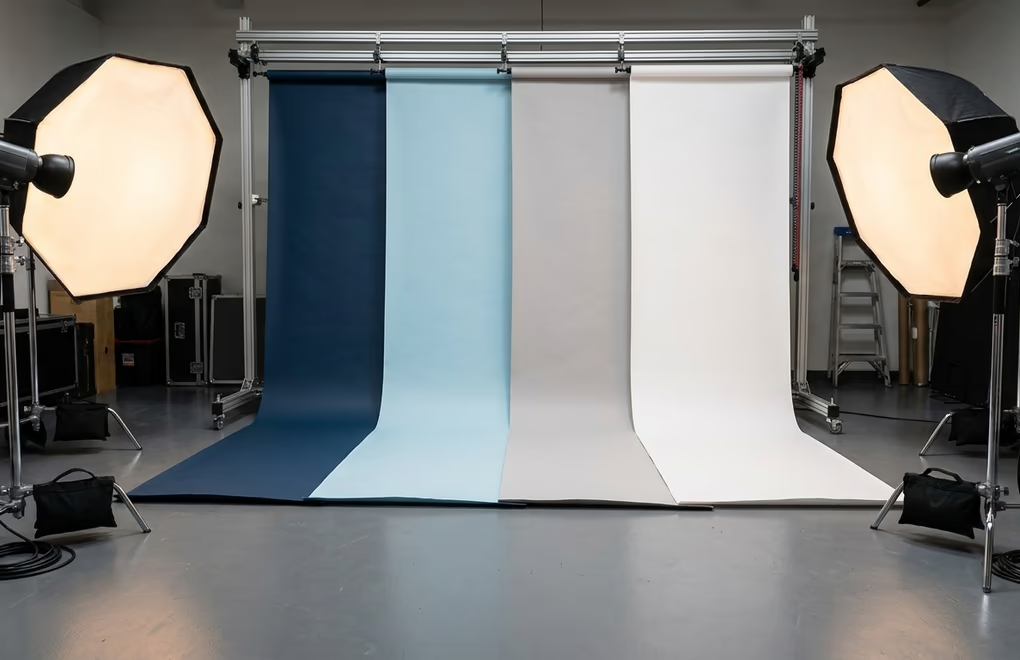
Background color matters more than most people expect, and the data is surprisingly clear. A PhotoFeeler analysis found that photos with blue backgrounds scored roughly 30% higher on perceived competence and likability compared to other solid colors. Blue reads as calm, trustworthy, and professional across cultures, which is probably why so many corporate headshot photographers default to a muted blue backdrop.
That said, you don't need to paint your wall blue. Neutral tones work almost as well: light gray, off-white, soft beige, and muted teal all keep the focus on your face without distracting the viewer. The colors that hurt performance are bright red (reads as aggressive), neon green (looks unnatural), busy patterns (compete with your face), and dark black walls that make the photo feel heavy and formal unless the lighting is very carefully controlled.
If you already have a brand color palette for your content or business, using a tinted version of one of those colors as your headshot background creates visual continuity across your profile. When someone sees your post in the feed and then clicks through to your profile, matching colors between your content, your LinkedIn banner, and your headshot reinforces recognition. That consistency is what separates a profile that feels intentional from one that looks like it was assembled at random. If your banner is still the default blue, the LinkedIn cover photo guide covers what to put there and how to change it.
Outdoor backgrounds can also work if you keep them simple. A blurred park, a clean building wall, or an out-of-focus cityscape adds visual interest without pulling attention from your face. The key is making sure the background blur is strong enough that no text, signs, or recognizable landmarks distract the viewer. Portrait mode on most modern phones handles this well outdoors, especially at focal lengths above 50mm equivalent (the "2x" or "3x" zoom on most phones).
One practical tip: if you're using your phone's portrait mode and the background blur isn't strong enough to hide a cluttered room, several free apps (Snapseed, Lightroom Mobile, TouchRetouch) let you replace the background entirely after the shoot. Swap it for a solid color or a soft gradient and the result will look cleaner than fighting with a messy real environment.
What should you wear in your LinkedIn profile picture?
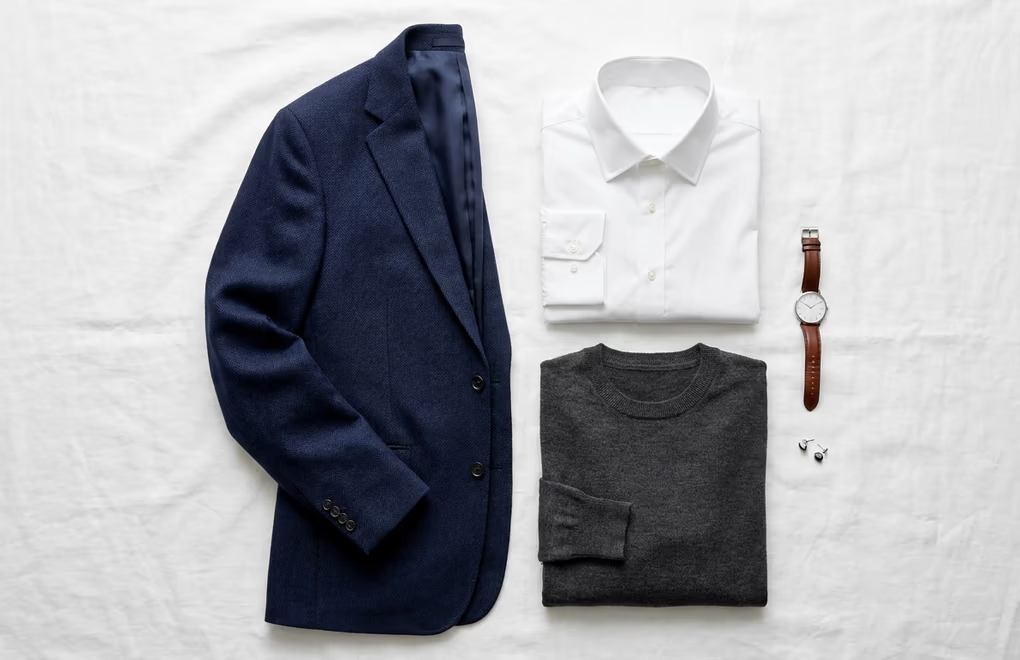
Wear what you would wear to meet a client or a hiring manager in your industry. The general rule is to dress one notch above your daily work outfit: if you work in a t-shirt, a collared shirt or a clean crew-neck sweater is enough; if your environment is business casual, add a blazer. The goal is to look professional within your context, not to dress like everyone else on LinkedIn.
Solid colors photograph better than patterns in small formats. At 48 pixels in the feed or 400 pixels on your profile, fine stripes and plaids create a visual buzzing effect called moire that makes the image look noisy. Stick with solid navy, charcoal, white, forest green, or burgundy, and avoid anything with a visible logo. The color of your clothing should contrast with your background: a dark blazer against a light wall separates you visually, while a white shirt on a white background makes your face look like it's floating.
Industry context matters here. A finance executive in a full suit and tie signals something very different from a startup founder in a plain black t-shirt, and both can be the right choice for their respective audiences. Coaches and consultants tend to perform well with a blazer over an open-collar shirt because it reads as approachable but credible. Engineers and developers in tech tend to skip the blazer entirely and go with a clean, fitted shirt or high-quality crew-neck, which matches the culture their clients and collaborators expect.
If you sell to multiple audiences, pick the outfit that matches your primary LinkedIn audience. A real estate professional working with luxury clients should lean more formal than one working with first-time homebuyers. A SaaS founder posting thought leadership content will get more engagement with a smart-casual look than with a full suit, because the founder community on LinkedIn has its own visual code and dressing too formally signals "corporate executive," not "builder."
Accessories should be minimal. A watch, small earrings, or a simple necklace are fine. Sunglasses on your head, oversized jewelry, or a hat change the focal point from your face to the accessory, and at LinkedIn's small thumbnail size, anything extra gets lost or becomes distracting. Keep the attention on your expression and your eyes.
How often should you change your LinkedIn photo?
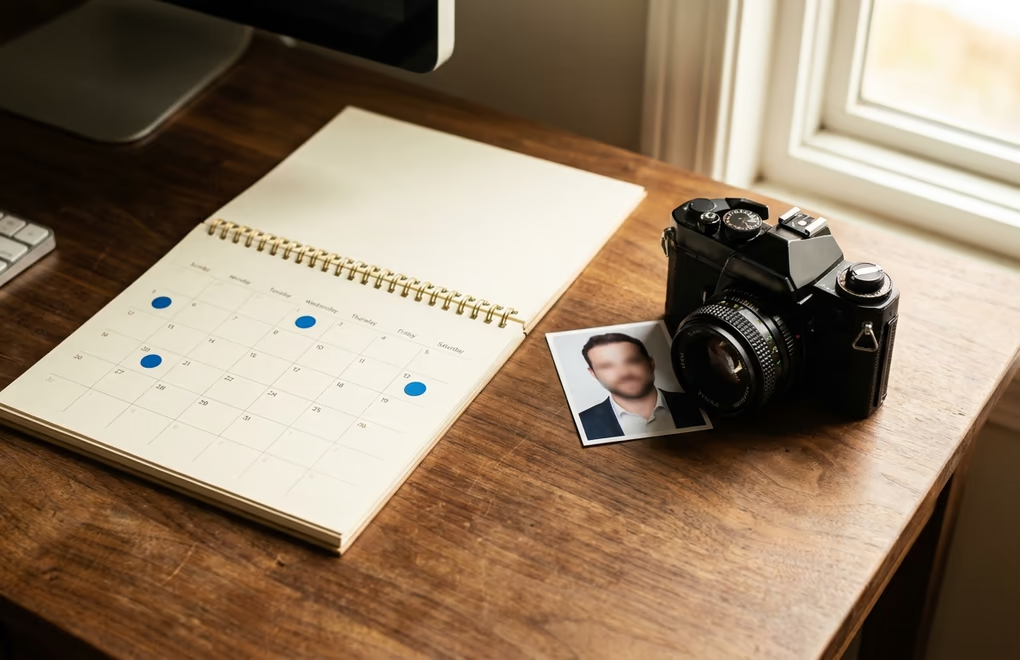
Update your LinkedIn profile picture every 2 to 3 years as a general baseline, or sooner if your appearance has changed enough that someone meeting you in person wouldn't immediately recognize you from your photo. Weight changes, new glasses, a different hairstyle, or going from clean-shaven to bearded are all good reasons to reshoot, because a photo that doesn't match reality creates an awkward moment at the start of any video call or in-person meeting.
Beyond appearance, there are strategic reasons to update. If you've shifted industries, repositioned your personal brand, or changed the type of client you want to attract, your photo should reflect that shift. A corporate headshot with a suit and tie sends the wrong signal if you've moved into startup consulting where your clients expect someone approachable and informal. Aligning your photo with your current positioning is just as important as aligning your LinkedIn headline and About section.
One thing to avoid is changing your photo too frequently. If you post regularly and your audience recognizes your face in the feed, a sudden change to a very different photo can break that recognition for a week or two while people re-learn your visual identity. When you do update, try to keep the same general composition (head and shoulders, similar crop, similar background tone) so the transition feels like a refresh rather than a complete rebrand.
A good trigger for updating is when you notice a mismatch between your photo and the rest of your profile. If your LinkedIn summary describes you as a startup advisor but your photo shows you in a corporate suit from 4 years ago, visitors will feel the disconnect before they can articulate it. The most effective profiles tell a consistent story across every element: photo, banner, headline, About section, and featured content all point in the same direction. When one element is out of date, the whole profile loses coherence.
Can AI generate a LinkedIn headshot that looks real?
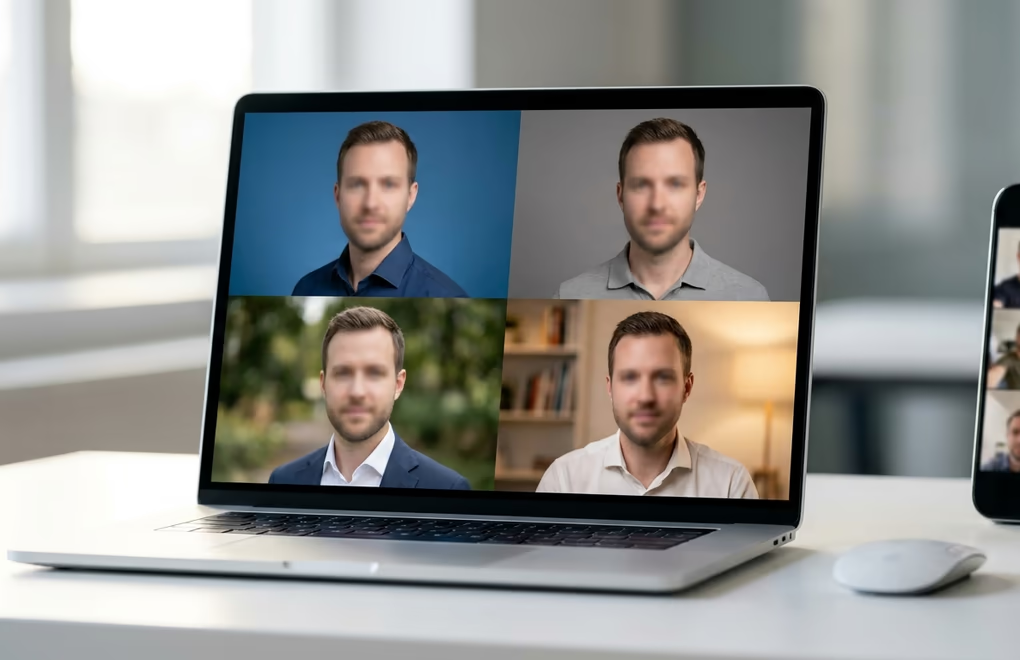
AI headshot generators have improved substantially since 2024 and can now produce photos that are difficult to distinguish from real professional headshots at LinkedIn's display size. Services like Aragon, HeadshotPro, and InstaHeadshots typically ask you to upload 10-15 selfies, then generate dozens of headshot variations in different backgrounds, outfits, and lighting conditions. Prices range from $25 to $60 per batch, which is 75-85% cheaper than a traditional photographer session at $200-$350.
The results can be good enough for LinkedIn, but they're not foolproof. The most common problems with AI headshots are over-smoothed skin that looks plastic, eyes that don't quite focus on the camera, slightly asymmetric facial features that the AI exaggerated instead of corrected, and hands or collars that dissolve into artifacts when you zoom in. At 400 x 400 pixels these flaws often disappear, but anyone who clicks to enlarge your photo may notice them.
If you don't have access to a photographer and can't take a good phone photo, AI headshots are a reasonable alternative. The test is simple: show the AI-generated photo to 2 or 3 people who know you and ask if it looks like you. If they say yes without hesitation, it works. If they squint and say "kind of," reshoot with your phone instead. Authenticity matters on LinkedIn because people will eventually see you on a video call, and a photo that looks nothing like the real you creates an immediate trust gap.
LinkedGrow's AI image generation feature can create professional backgrounds and lifestyle images for your LinkedIn posts, banners, and carousels using your own API key. It doesn't generate headshots of people (the profile picture should be a real photo of you), but it handles everything else you need for a polished LinkedIn presence. You can try it free for 7 days with everything included.
What are the most common LinkedIn profile picture mistakes?
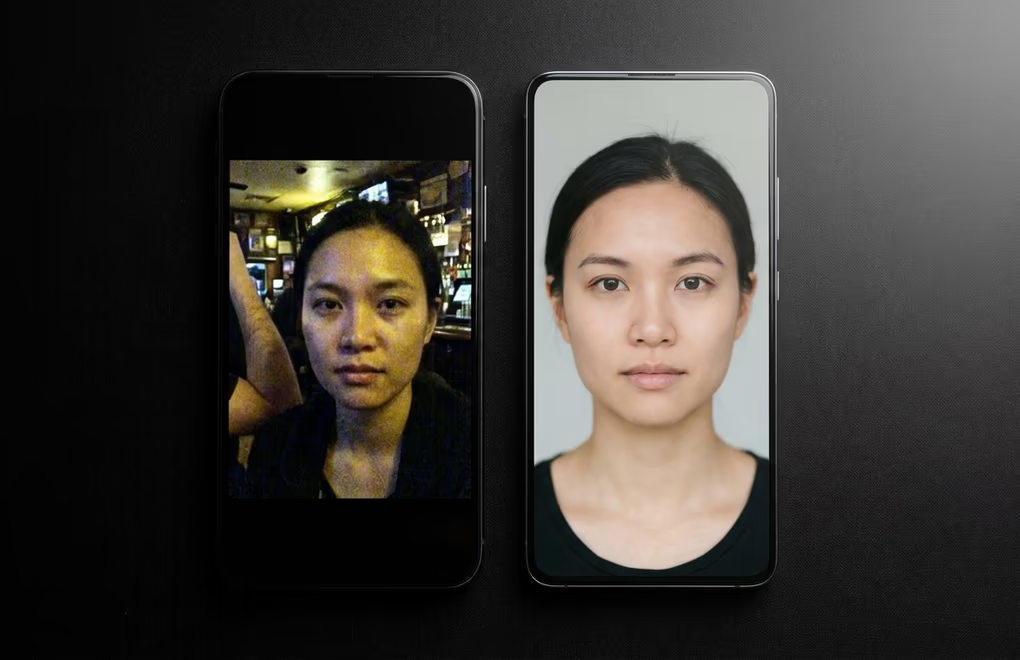
A bad profile picture actively pushes people away, and the damage happens at the connection request stage where you never see the rejection. Here are the mistakes that cost the most in lost opportunities.
Using a cropped group photo. Cutting yourself out of a wedding photo or a team event always leaves artifacts: someone else's arm on your shoulder, a blurry background that screams "party," or a resolution too low to look sharp at 400 x 400 pixels. It also signals that you didn't think your LinkedIn presence was worth 10 minutes of dedicated photography, which is a subtle but real message you send to anyone evaluating whether to connect with you, hire you, or respond to your outreach.
Uploading an old photo. If your photo is more than 5 years old, anyone meeting you on a video call or at a conference will do a double-take. That moment of disconnect erodes trust before the conversation even starts, and it's entirely avoidable by reshooting every 2-3 years (or whenever your appearance changes significantly).
Hiding behind heavy filters. Skin-smoothing filters, dramatic color grading, and strong vignettes might look good on Instagram, but on LinkedIn they look artificial and make people question whether the photo represents you accurately. A clean, lightly edited photo with natural colors always outperforms a heavily filtered one in professional contexts.
No photo at all. A blank gray silhouette is the biggest conversion killer on LinkedIn. People are far less likely to accept a connection request from a profile with no photo because it feels anonymous or potentially fake. Even a basic phone selfie in good light is better than no photo, and you can always upgrade it later.
Standing too far from the camera. If your full body is visible and your face takes up less than 30% of the frame, your features will be unrecognizable at thumbnail size. LinkedIn recommends that your face fill 60-70% of the image, which means a head-and-shoulders crop. Everything below the chest should be outside the frame. If you've already taken the photo and it's too wide, crop it to a tight square before uploading rather than letting LinkedIn's auto-crop make the choice for you.
Avoiding eye contact. Photos where the subject looks to the side, at their phone, or somewhere off-camera feel disconnected. Direct eye contact into the lens creates the illusion that you're looking at the viewer, which builds a small but measurable sense of trust and engagement. If you find it uncomfortable to stare into a camera lens, place a small sticker or piece of tape just above the lens and look at that instead, because the lens is so small the difference is invisible in the final image.
If you're already investing time in creating LinkedIn content, whether you use LinkedGrow's AI post generator or writing your own hooks from scratch, a weak profile picture undermines all of that effort. Every impression your content generates sends people back to your profile, and the first thing they see is your face. Making that first impression count is worth the 15 minutes it takes to get the photo right.
The complete checklist comes down to a few things you can get right in a single sitting: upload at 800 x 800 pixels or larger, use natural front-facing window light, choose a blue or neutral background, dress one notch above your daily work outfit, make sure your face fills 60-70% of the frame, and look directly into the lens. Pair that photo with a strong personal brand strategy and your profile will convert more of the impressions your content generates into actual connections and conversations.
Frequently Asked Questions
LinkedIn displays profile pictures at 400 x 400 pixels, but you should upload an image that is at least 800 x 800 pixels so LinkedIn can downscale it cleanly. The maximum file size is 8 MB, and LinkedIn accepts JPEG and PNG formats. Square images work best because LinkedIn crops every profile photo into a circle.
Yes. Your profile picture appears next to every post, comment, and message you send. A clear, professional photo builds recognition in the feed, which makes people more likely to stop and read when they see your name. Profiles with photos also receive significantly more connection requests than those without one.
AI headshots can work well if you don't have access to a photographer, but only if the result looks natural. Avoid any tool that adds visible smoothing, plastic-looking skin, or eyes that don't quite focus correctly. Compare the AI result to a real selfie taken in good light, and pick whichever looks more like the real you in a professional setting.
Update your profile picture every 2 to 3 years, or whenever your appearance changes enough that someone who met you would not recognize the photo. Also update it when you change industries or shift your personal brand positioning, since the photo should match the audience you want to attract.
Research from PhotoFeeler found that blue backgrounds increase perceived competence and likability by around 30% compared to other solid colors. Neutral tones like light gray and soft white also perform well. Avoid bright red, neon green, or busy patterns, which pull attention away from your face.
You can, and doing so actually helps with brand recognition if you post across multiple platforms. The one exception is if your LinkedIn audience is very different from your Instagram or X audience, in which case the attire and tone of the photo should match the platform. A suit headshot on LinkedIn and a casual shot on Instagram is a reasonable split.
The post you keep meaning to write takes four minutes here.
LinkedGrow turns a link, a video or a rough idea into a LinkedIn post written in your own voice, then puts it in the calendar for the morning your audience is awake.
Start free for 7 days