This article covers every LinkedIn banner size you need - personal profiles, company pages, events, and Life tabs - with exact pixel dimensions, safe zone coordinates, and the mobile cropping behavior that most other references skip. You'll also get design formulas by profession so your banner actually works as a conversion tool, not just a decoration. For the messaging side, what to actually put on the banner and ideas by role, see the LinkedIn cover photo guide. If you're optimizing your full profile, pair this with the LinkedIn profile optimization checklist so the banner, headline, and About section all work together. Your LinkedIn banner is the largest visual element on your profile, and most people either leave it blank or upload something that gets mangled on mobile screens. The banner stretches across the top of your profile like a billboard, but LinkedIn crops it differently depending on the device, the page type, and even the viewer's screen resolution. Getting the dimensions wrong means your tagline gets sliced in half, your logo disappears behind your headshot, or the whole thing looks stretched and blurry.
This article covers every LinkedIn banner size you need - personal profiles, company pages, events, and Life tabs - with exact pixel dimensions, safe zone coordinates, and the mobile cropping behavior that most other references skip. You'll also get design formulas by profession so your banner actually works as a conversion tool, not just a decoration. If you're optimizing your full profile, pair this with the LinkedIn profile optimization checklist so the banner, headline, and About section all work together.
What is the correct LinkedIn banner size for every page type?
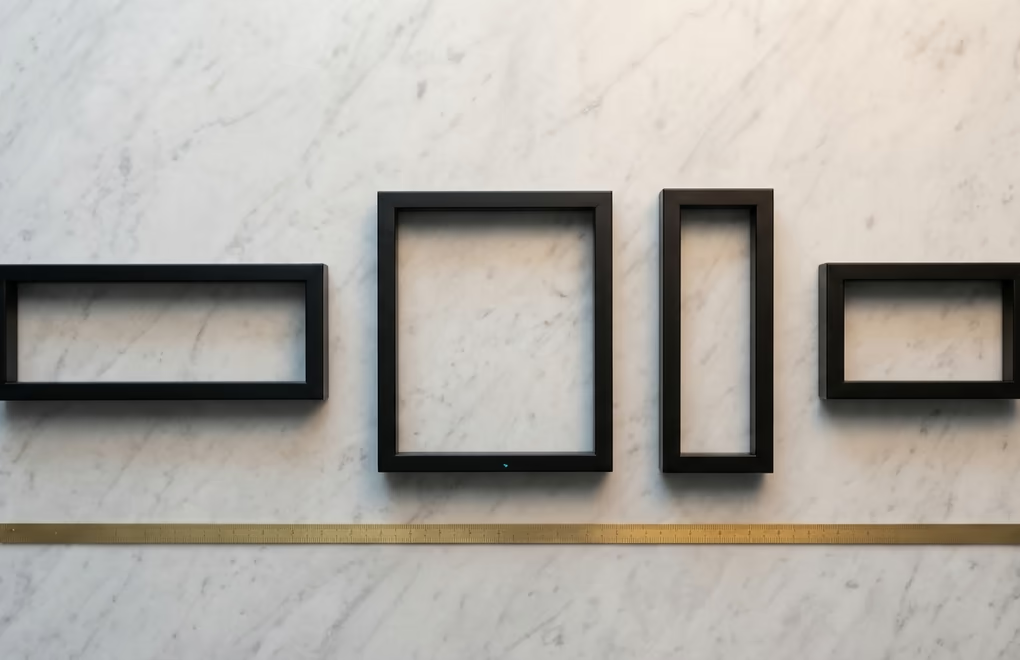
LinkedIn uses different banner dimensions depending on whether you're looking at a personal profile, a company page, an event, or the Life tab. Here's the full reference.
| Page Type | Dimensions (px) | Aspect Ratio | Max File Size |
|---|---|---|---|
| Personal Profile | 1584 x 396 | 4:1 | 8 MB |
| Company Page Cover | 1128 x 191 | ~5.9:1 | 8 MB |
| Life Tab (Main) | 1128 x 376 | 3:1 | 8 MB |
| Event Banner | 1128 x 376 | 3:1 | 8 MB |
| Life Tab Custom Module | 502 x 282 | ~16:9 | 8 MB |
The personal profile banner at 1584 x 396 pixels is the one most people search for, and it's the most important to get right because it's tied directly to your personal brand. Company page covers are wider and thinner, which limits the vertical space you have for text or imagery. Both accept JPEG and PNG files up to 8 MB, though LinkedIn doesn't support WebP, AVIF, or SVG for banners. If your file is over 8 MB, compress it down to 80-90% JPEG quality before uploading, which almost always keeps it under the limit without visible quality loss.
One thing the specs don't tell you: uploading a smaller image forces LinkedIn to stretch it, which creates visible blur, especially around text. Always design at the exact recommended size or larger, then crop to fit. If you also share single-image or multi-image posts, note that those follow completely different dimension rules than banners - the LinkedIn post image size guide covers the exact pixels for every feed format. For a quick reference of every LinkedIn image type in one place, LinkedGrow has a free LinkedIn image sizes cheat sheet that covers posts, carousels, ads, and profile photos.
How does your LinkedIn banner look on mobile vs desktop?
Your LinkedIn banner gets cropped differently on mobile and desktop, and this is where most banner designs fall apart. On a desktop browser, you see the full 1584 x 396 pixel canvas with your profile photo overlapping a small portion of the bottom-left corner. The banner fills the width of the content area, and most of your design remains visible.
On mobile, LinkedIn crops roughly 15% from each side and trims the top and bottom edges to fit the narrower screen. Your profile photo also takes up significantly more space on mobile - it overlaps a larger chunk of the bottom-left quadrant. If you've placed your tagline near the left edge or positioned a logo at the bottom, there's a good chance it disappears entirely on phones. Since over 60% of LinkedIn traffic comes from mobile devices, a banner that only looks good on desktop is a banner that only works for the minority of your visitors.
The fix is simple: design for mobile first. Place your most important visual elements - your tagline, value proposition, or brand name - in the center-right portion of the canvas. Avoid putting anything critical within 200 pixels of the left or right edges, and keep the bottom-left area clear for the profile photo overlap. Before you finalize your banner, open your profile on a phone and check that everything you care about is still visible. This one step saves more banners than any design tool ever could.
Where are the safe zones on a LinkedIn banner?
The safe zone is the area of your banner where text, logos, and key visuals won't get cropped on any device. For a personal profile banner (1584 x 396 px), the safe zone sits in the center of the canvas at roughly 1200 x 300 pixels. That means you should leave about 190 pixels of margin on the left and right, plus 48 pixels on the top and bottom. Anything outside this rectangle risks getting cut off on mobile.
There's a second restriction on top of that: the profile photo overlap. On desktop, your circular headshot covers approximately the bottom-left 170 x 170 pixel area of the banner. On mobile, this overlap zone grows to roughly 220 x 220 pixels because the profile photo renders larger relative to the screen width. The practical takeaway is to treat the bottom-left quarter of the banner as a dead zone for important content. Don't put text, a website URL, or a CTA there because your own face will cover it.
Company page covers have a different safe zone because there's no personal headshot overlapping the banner. The company logo sits below the banner (not on top of it), so you have the full width to work with. The safe content area for a 1128 x 191 pixel company cover is roughly the center 900 x 150 pixels. This thinner format works best with a clean, horizontal layout - a short tagline, your brand colors, and nothing more. Trying to cram a paragraph of text into 191 pixels of height never ends well.
If you want a quick way to plan your layout before opening a design tool, draw a simple 4x1 rectangle on paper, mark the bottom-left quarter as off-limits, and sketch your content inside the remaining three-quarters. That napkin sketch will save you from the most common safe-zone mistakes before you spend any time on the actual design. And when the banner is done, make sure the rest of your profile is just as polished - LinkedGrow helps you create content that matches the professional image your new banner sets.
What makes a LinkedIn banner actually effective?
An effective LinkedIn banner does more than fill empty space. It tells a visitor what you do, who you help, and why they should keep scrolling in about 2 seconds of attention. Most banner advice stops at "keep it professional", which is vague enough to be useless. Here are the 5 elements that the best-performing banners tend to include.
A clear value statement. This is a short tagline that tells people exactly what you do. "I help B2B SaaS companies generate leads through LinkedIn content" works. "Dreamer. Builder. Innovator." doesn't. Your banner tagline should read like a billboard - one glance and the message lands. Keep it under 10 words and place it in the center or right half of the safe zone.
Your brand colors. Use the same 2-3 colors across your banner, profile photo border (if Premium), and the visuals in your posts. This consistency creates recognition in the feed. When someone visits your profile after seeing your post, the matching colors reinforce that they're in the right place. If your personal brand doesn't have defined colors yet, pick 2 and start using them everywhere.
Social proof or a credential. If you have a notable number - "15,000+ students trained", "$4M in pipeline generated", "Featured in Forbes" - put it on your banner. Specific numbers build trust faster than adjectives. A visitor who sees a concrete result on your banner is more likely to read your headline and About section.
A subtle CTA. This doesn't mean plastering "BOOK A CALL" across your banner. A small website URL in the bottom-right corner (inside the safe zone, outside the profile photo overlap) or a simple "Free training at yoursite.com" works because it gives interested visitors a next step without being pushy.
Visual hierarchy. A banner with 5 competing elements looks cluttered. Pick one focal point - usually the tagline - and make everything else support it. A clean background photograph with a semi-transparent overlay for text readability performs consistently better than a collage of logos, headshots, and graphics competing for attention.
How should different professionals design their LinkedIn banner?
Different roles need different banner strategies because the person visiting your profile has different expectations depending on what you do. A generic "keep it clean and professional" approach misses the opportunity to speak directly to your specific audience. Here's what works for 5 common LinkedIn roles.
Consultants and coaches. Your banner should answer "what transformation do you deliver?" in one sentence. Include your niche ("Leadership coaching for tech executives"), one proof point ("400+ leaders coached"), and a warm, approachable color scheme. Avoid stock photos of handshakes. A clean background with clear text outperforms a busy image every time.
SaaS founders and product builders. Show the product. A clean screenshot or mockup of your product in the center-right of the banner instantly communicates what you're building. Add a 4-word value prop above it and your website URL below. Visitors want to see the product before they read your story, and the banner is the fastest way to deliver that first impression. LinkedGrow's AI image generation can create polished product mockups and banner backgrounds in seconds if you don't have a designer on hand.
Ghostwriters and content agencies. Your banner is a portfolio piece. Use a bold, editorial design that demonstrates your taste level - this is the first writing-adjacent work a potential client sees. A clean tagline like "LinkedIn content that builds pipeline" with a dark, sophisticated color scheme signals quality. If you manage multiple clients, LinkedGrow's content tools can help you manage LinkedIn content for multiple clients without juggling separate accounts.
Real estate agents. Focus on your market. A high-quality photo of a property or a recognizable local landmark tells visitors where you operate without reading a word. Add your brokerage name, your market area ("San Francisco Bay Area"), and your direct phone number. Real estate clients search LinkedIn to verify credibility - your banner should make them feel like they're already in good hands.
Job seekers and career changers. Keep it simple. A banner with your target role ("Product Manager | Fintech") and 1-2 relevant skills signals to recruiters exactly what you're looking for. Avoid putting "Open to Work" on the banner since LinkedIn already has a dedicated frame for that. Instead, use the space to highlight what makes you different from the other 500 applicants with the same job title.
How do you create and upload a LinkedIn banner for free?
You don't need paid design software to create a professional LinkedIn banner. Canva's free plan includes a "LinkedIn Banner" template pre-sized to 1584 x 396 pixels, so you start with the right dimensions and just customize the colors, text, and background image. Figma is another free option if you want more control over typography and layout - create a new frame at 1584 x 396 and design from scratch.
When exporting, save as JPEG at 85-90% quality for photographs or PNG for graphics with sharp text. Both formats keep the file well under LinkedIn's 8 MB limit while preserving visual clarity. Avoid exporting at 100% quality because the file size jumps dramatically with almost no visible improvement. If your banner includes text over a photo, adding a semi-transparent dark overlay behind the text ensures it's readable regardless of the background image.
To upload on desktop, go to your LinkedIn profile, click the camera icon on your banner area, and select "Change photo". LinkedIn's built-in cropper lets you reposition the image, but it won't resize it - so if you designed at the exact dimensions, the cropper should frame everything correctly without any adjustments. On mobile, tap your profile photo, then tap the banner area, and follow the same upload flow. Always check how the banner looks on both devices after uploading.
The most common upload error is a banner that looks blurry. This almost always happens because the source image was smaller than 1584 x 396 pixels, forcing LinkedIn to upscale it. The second most common issue is text getting cut off by the profile photo, which means the design didn't account for the bottom-left overlap zone. If you run into either problem, go back to your design tool, fix the dimensions or layout, re-export, and re-upload. It takes 2 minutes and the difference is immediately visible.
If you want to generate a unique background image using AI instead of browsing stock photos, LinkedGrow lets you create professional images with your own AI API key. You describe the scene you want, the AI generates it, and you download the result in the exact size you need. It's part of the Pro plan, which you can try free for 7 days with everything included.
Which banner mistakes cost you profile views?
A bad banner doesn't just look unprofessional - it actively discourages people from reading the rest of your profile. Here are the mistakes that damage your first impression the most.
Leaving the default blue gradient. LinkedIn's default banner tells visitors you either don't care about your profile or you're not active on the platform. Either message pushes potential connections, clients, and recruiters to click away. Any custom banner is better than the default because it signals that you've put at least some thought into how you present yourself.
Using a random nature photo. A mountain sunset or a beach panorama might look pretty, but it says nothing about what you do. Unless you're a travel photographer or a tourism company, nature backgrounds waste your most visible piece of profile real estate. Every pixel of your banner should serve your professional positioning.
Cramming too much information. A banner with your name, title, 3 certifications, a headshot, 2 logos, your phone number, and a QR code is visual noise. Nobody reads all of that. Pick one message and communicate it clearly. If your LinkedIn posts are already well-formatted, extend that same clarity to your banner.
Ignoring contrast and readability. White text on a light photo or dark text on a dark background makes your message invisible. If you're layering text over a photograph, test the readability at 50% zoom (roughly how it looks on mobile). A semi-transparent overlay behind the text solves most contrast issues in one step.
Never updating the banner. Your banner from 3 years ago references a role you no longer hold, a company you left, or a product that no longer exists. Visitors notice the mismatch between your banner and your current headline, and it raises questions about how current the rest of your profile is. Set a quarterly reminder to review whether your banner still matches your positioning. If you're using LinkedGrow to schedule posts and build your presence, updating the banner each quarter keeps everything aligned.
Frequently Asked Questions
The ideal LinkedIn banner size for a personal profile is 1584 x 396 pixels with a 4:1 aspect ratio. Upload it as a JPEG or PNG file under 8 MB. Keep text and key visuals inside the center 1200 x 300 pixel safe zone so nothing gets cropped on mobile.
A LinkedIn company page cover image should be 1128 x 191 pixels. The aspect ratio is roughly 5.9:1, which is noticeably wider and thinner than the personal profile banner. Company covers don't have a profile photo overlapping the corner, so you can use more of the canvas.
Yes. Mobile crops roughly 15% from each side and trims the top and bottom edges. The profile photo also takes up a larger portion of the bottom-left area on small screens. Always preview your banner on a phone before finalizing because text near the edges will disappear.
No. LinkedIn doesn't support transparency in banner images. If you upload a PNG with a transparent background, LinkedIn fills the transparent area with white. Use a solid background color or a full photograph instead.
Update your banner when something meaningful changes: a new role, a rebranded business, a major product launch, or a shift in your content focus. Changing it every quarter keeps your profile feeling current without confusing repeat visitors who recognize your visual identity.
LinkedGrow's AI image generation feature can create professional, on-brand images you can use as your banner background. You bring your own AI API key, generate unlimited images, and download them in the exact dimensions LinkedIn requires. Try it free for 7 days.
The post you keep meaning to write takes four minutes here.
LinkedGrow turns a link, a video or a rough idea into a LinkedIn post written in your own voice, then puts it in the calendar for the morning your audience is awake.
Start free for 7 days