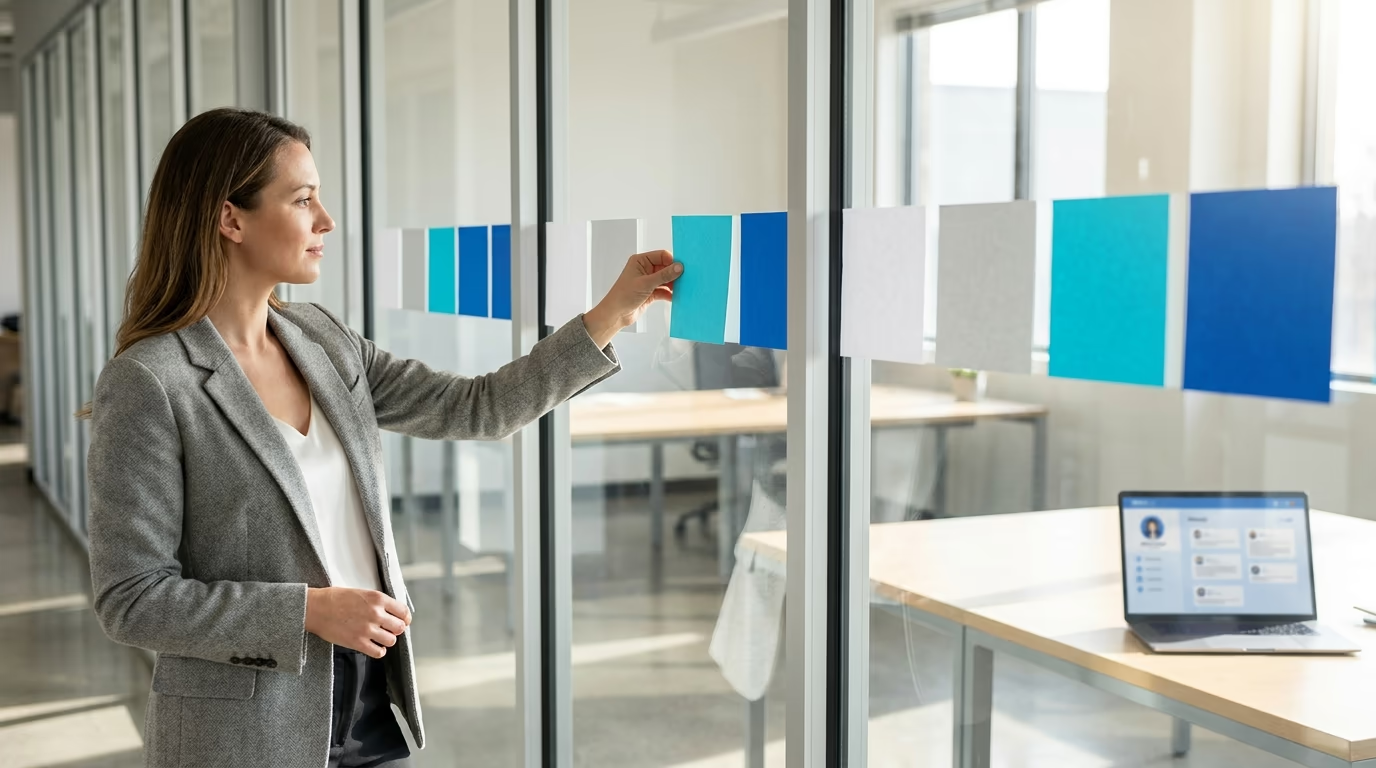
The LinkedIn featured section is a strip near the top of your profile where you pin your best posts, articles, links, and media, so visitors see your strongest work first. You add it through Add profile section, then Recommended, then Add featured, and it sits just below your About section on both desktop and the mobile app.
Most profiles either leave this section empty or fill it with whatever they posted last, and both waste the best piece of profile real estate you have. A recruiter, a prospect, or a potential follower lands on your page, reads your headline, and the very next thing they can click is whatever you chose to feature. Choose it well and you control the first impression instead of leaving it to chance.
This guide covers the whole thing: where the section lives and what it is, the exact steps to add it on desktop and on your phone, what to feature depending on your goal, the image size that keeps your cards sharp, and how to turn a static section into something that brings in follows and leads. Every step matches how LinkedIn works right now, and the specs come straight from LinkedIn rather than from guesswork.
One thing is worth settling before you start. The featured section is only as good as the content you put in it, so the people who get the most out of it treat it as the shop window for a real posting habit. That is where a tool like LinkedGrow fits later, once you know what belongs in the window.
What is the LinkedIn featured section, and where is it?
The LinkedIn featured section is a dedicated area on your profile for pinning samples of your work, and it lives just below your About section and above your Activity. Think of it as a highlight reel that stays put while the rest of your content scrolls away. Anything you feature keeps showing at the top of your profile until you swap it out, which is exactly why it matters more than any single post.
You can feature four kinds of content, and mixing them is usually the strongest play. You can pin LinkedIn posts you wrote or reshared, articles you published on the platform, external links to a website, portfolio, or booking page, and media you upload directly such as images, documents, presentations, and short videos. A newsletter can go there too. LinkedIn confirms the section holds posts, articles, external media, documents, and links, so almost anything that proves your value has a home here.
Because the section sits so high, it does a job your headline can't. Your headline tells people what you do, and your featured section shows them proof. If you want the full picture of how the pieces of a profile work together, our guide to LinkedIn profile optimization walks through the headline, About, and keywords that get you found in the first place. The featured section is where that traffic decides whether to trust you.
How do you add the featured section on LinkedIn?
You add the featured section from your own profile in a few clicks, and the option lives inside the Add profile section menu rather than anywhere obvious. The first time you set it up you are adding the section itself, and after that you just add more items to it. The whole thing takes under a minute once you know where to look, and it works the same whether you have one thing to feature or ten.

- Go to your profile and click Add profile section, the button just under your headline.
- Expand the Recommended dropdown and click Add featured.
- In the Featured panel, click the + in the top right corner.
- Choose what to feature: a post, a link, media to upload, or a newsletter.
- Select or upload your item, add a title and description where offered, then click Save.
The steps on the mobile app follow the same path, which surprises people who assume it is desktop only. In the LinkedIn app, open your profile, tap Add section near the top, choose Recommended, then tap Add featured and pick what you want to feature. This is one area where the app keeps up with the browser, unlike writing a LinkedIn article, which still needs a desktop. If the Featured option refuses to appear in the app, update to the latest version or switch to a browser, since desktop gives you the cleanest controls for uploading media and checking how each card looks to a visitor.
There is an even faster way to feature a single post, and it skips the profile menu entirely. Open any post of yours in the feed or on your profile, click the three-dot menu in its top right corner, and choose Feature on top of profile. LinkedIn pins it to your featured section instantly, and the same menu holds Remove from features when you want to swap it out. This shortcut is the one I reach for most, because the best thing to feature is often a post that just did well, and this pins it the moment you see the numbers climb.
Once items are in, you are not stuck with the order LinkedIn gives you. Hover over the section, click the pencil to edit, and drag any item to reorder, or open a single card to change its title, swap its thumbnail, or remove it. Reordering matters more than it sounds, because the first card is the one nearly everyone sees, while the ones further right earn a click only from people who bother to scroll the row.
What should you put in your featured section?
What you put in your featured section depends entirely on what you want a visitor to do next, so start from the goal and work backward. A job seeker, a coach, and a founder all want different actions, and the featured section should point at the one that matters to you. Feature the piece that moves someone one step closer to that action, not simply your most recent update.
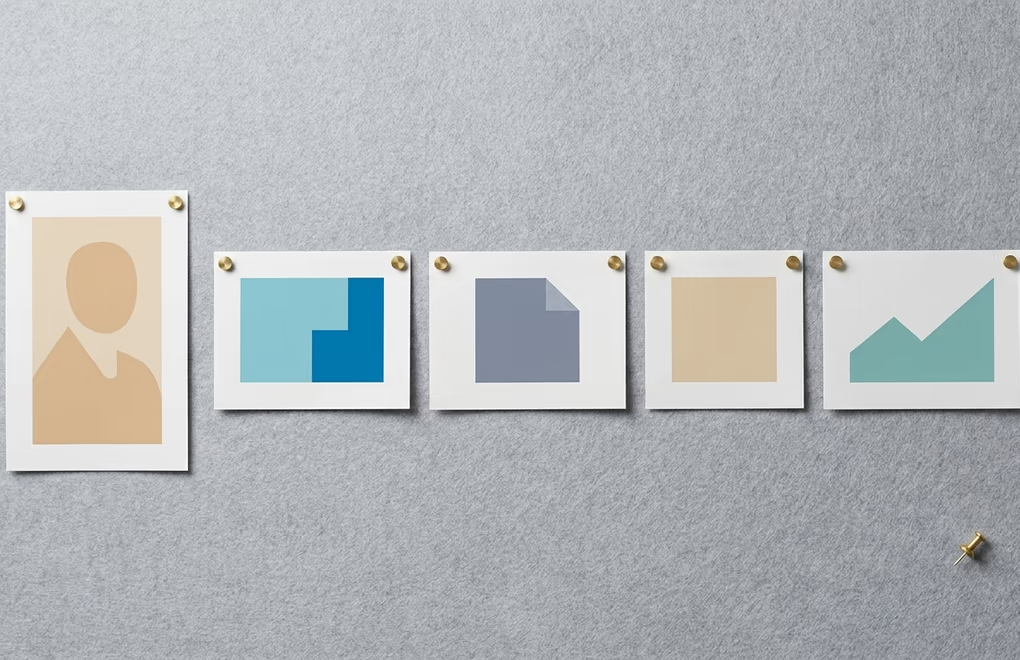
If you are job hunting, feature a short intro video, a portfolio link, and one post that shows your work in action, so a recruiter gets proof without leaving your profile. A coach or consultant is better served by a booking link paired with a client result, plus a post that shows how they think, which turns a profile visit into a discovery call. A founder building in public might lead with the company link, then back it with a standout launch post and a lead magnet that captures an email. For a ghostwriter or agency, results are the whole pitch, so a case study and a strong testimonial do more than any description ever could.
Across every one of those, the strongest single item is usually a post that already performed well, because engagement acts as social proof the moment someone lands on your page. If you are not sure which of your posts to feature, our roundup of LinkedIn post examples shows the formats that tend to earn saves and comments, and those are the ones worth pinning. A carousel works especially well here, since it shows depth at a glance, and you can build one fast with LinkedGrow's carousel maker rather than designing slides by hand.
A few choices quietly work against you, so they are worth naming. Featuring everything you have ever published turns the row into clutter and buries the one piece that matters, which is why three to six items beats twelve. A random headshot or an off-topic link sends a mixed signal about what you actually do, and a link to a page with a broken or ugly preview image makes the whole profile look neglected. The fix is a simple rule: every featured item should support the one action you want a visitor to take, and anything that does not earn its place comes out.
What image size works best for the featured section?
The featured section image size that looks cleanest is 1200 x 627 pixels, a 1.91:1 horizontal ratio, which is the same shape LinkedIn uses for link previews across the platform. Each featured item shows as a card with a horizontal thumbnail, so anything close to that ratio fills the card without awkward cropping. Upload a JPG or PNG under 5 MB and keep the important part of the image near the center, since the edges can get trimmed on smaller card layouts.
How the thumbnail gets chosen depends on what you feature. When you pin a link, LinkedIn pulls the preview image from the destination page, so the card only looks as good as that page's own preview image, which is worth checking before you feature it. When you upload media directly, you control the image completely, which is why uploaded media almost always looks sharper than a scraped link preview. For a post you feature, the card uses whatever image was in that post. If you want the exact dimensions for every LinkedIn format in one place, our LinkedIn image sizes reference has them.
Not every featured item is a static image, and knowing how each type renders helps you pick the right one. A featured document, like a PDF one-pager or a slide deck, shows as a small multi-page preview a visitor can flip through without leaving your profile, which is perfect for a case study or a media kit. A featured video plays inline, so a short intro clip can introduce you in your own voice. A link and a post both show as a single horizontal card, so those are the two where the 1200 x 627 thumbnail rule matters most.
A blurry or cropped thumbnail is the most common complaint, and it almost always traces back to a wrong-shaped source image. Fix it by uploading a horizontal image at 1200 x 627 rather than a square or a portrait shot, and if a featured link shows the wrong picture, update the preview image on the destination page and re-add the link so LinkedIn fetches it fresh. Spending two minutes on this is worth it, because a crisp featured row signals care in a way a pixelated one quietly undercuts.
How do you make your featured section drive results?
You make the featured section drive results by treating it as a living part of your profile rather than a box you fill once and forget. The best-performing sections hold three to six items, lead with the single strongest piece on the left, and get refreshed whenever you publish something better or hit a new milestone. A stale featured row from two years ago tells a visitor you have not done anything worth showing since, which is the opposite of the message you want.
The catch is that a great featured section depends on a steady supply of content worth featuring, and that is where most people stall. You can only pin your best post if you are actually posting, so the featured section quietly rewards a consistent habit and punishes a dormant profile. This is why it pays to treat your featured picks and your regular posting as one system: publish often, watch what performs, and promote the winners into the section. Our guide on what to post on LinkedIn helps if the steady supply is the part you struggle with.
A simple habit keeps the section honest: review it once a month and ask whether each item still represents your best work. Swap out anything a newer post beats, rotate a seasonal offer or a launch into the top slot while it is relevant, and pull anything tied to a role or project you have moved on from. This takes about five minutes, and it is the difference between a profile that looks current and one that looks abandoned, since a visitor cannot tell whether you are active from your headline alone.
Keeping that engine running by hand is where a tool earns its place. LinkedGrow drafts posts and carousels in your own voice, tracks which ones land, and runs on your own AI key for a typical $2 to $4 a month, so you always have fresh, high-performing content to graduate into your featured section. Voice training studies a handful of your posts and matches your tone, which means the pipeline feeding your featured row sounds like you rather than like a template. You can try LinkedGrow free for 7 days and cancel in one click if it is not for you.
Make your featured section the best thing on your profile
The featured section is the highest-value space on your LinkedIn profile that almost nobody uses well. Add it in under a minute from Add profile section on desktop or mobile, feature three to six items chosen around one clear goal, keep them at 1200 x 627 so the cards stay sharp, and lead with your strongest piece. Do that and the section quietly converts profile visits into follows, replies, and conversations while you focus on other things.
The one thing it needs from you is a steady stream of content good enough to feature, and that is the harder half. If you want the posting handled so your featured section never goes stale, LinkedGrow drafts and schedules content in your voice on your own AI key for a few dollars a month, and you can start a free 7-day trial with no credit card. Fill your featured row with proof, and let it sell for you.
Frequently asked questions about the LinkedIn featured section
The featured section sits near the top of your profile, just below your About section and above your Activity feed. On both desktop and mobile you reach it through Add profile section, then Recommended, then Add featured. If you have not set it up yet, it stays hidden until you add your first item, so an empty profile shows nothing there at all.
Yes, the featured section works fully on the LinkedIn mobile app. Open your profile, tap Add section near the top, choose Recommended, then Add featured, and pick what to feature. Unlike publishing an article, which needs a desktop, this one does not. If the option is missing, update the app or use a browser instead.
Use 1200 x 627 pixels, a 1.91:1 horizontal ratio, saved as a JPG or PNG under 5 MB. That matches the shape of a featured card, so your thumbnail fills it without cropping. Keep the key part of the image centered, because the edges can get trimmed, and uploaded media always looks sharper than a scraped link preview.
Three to six items is the sweet spot, enough to show range without overwhelming a visitor or burying your best piece. Lead with your single strongest item on the left, since that first card earns by far the most clicks, and refresh the lineup whenever you publish something better or reach a new milestone worth showing.
An empty featured section stays hidden until you add your first item, so a brand-new profile shows nothing there by design. Add something through Add profile section, then Recommended, then Add featured. If the option is missing on mobile, update the app or use a desktop browser, where the featured controls are always available and easiest to manage.
The post you keep meaning to write takes four minutes here.
LinkedGrow turns a link, a video or a rough idea into a LinkedIn post written in your own voice, then puts it in the calendar for the morning your audience is awake.
Start free for 7 days