
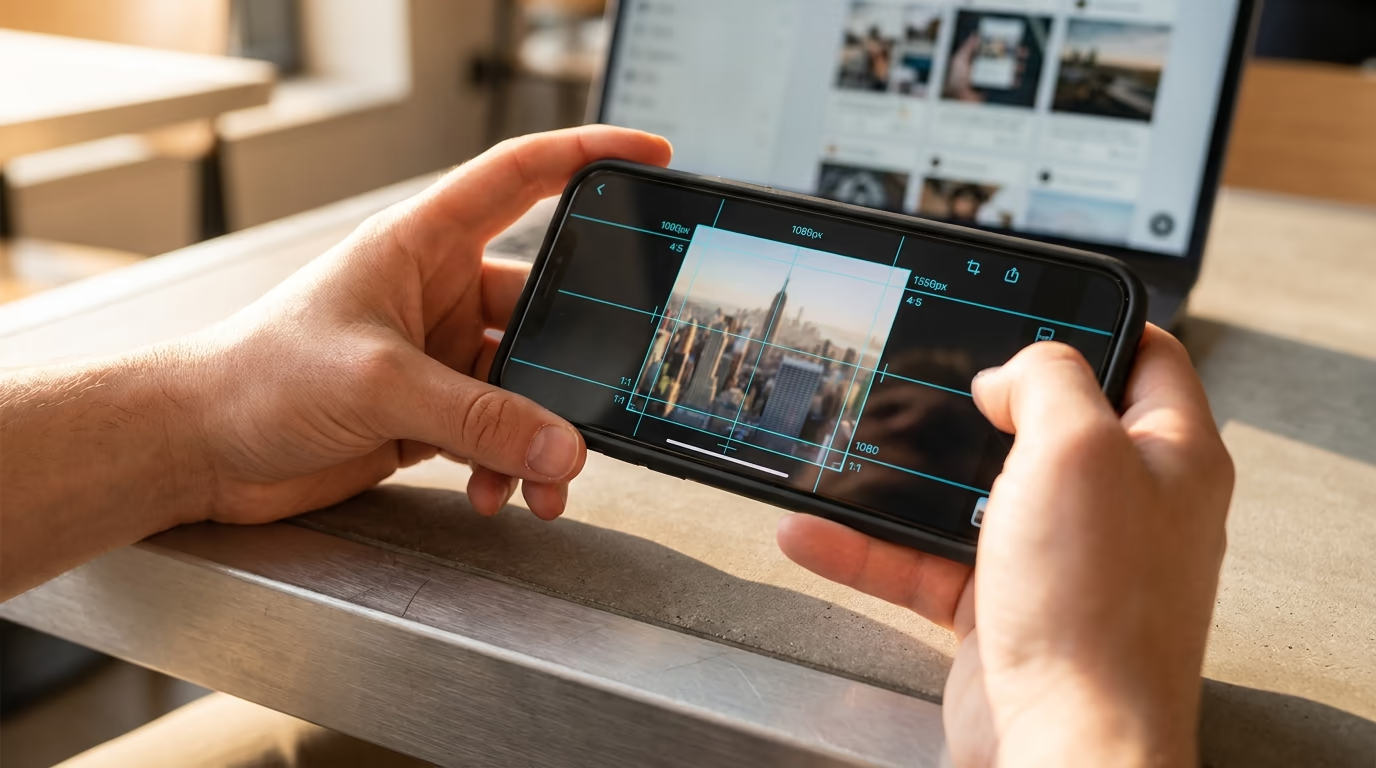
LinkedGrow is an AI-powered LinkedIn content platform, and one of the most common questions we see from creators is about image dimensions. Upload a post image at the wrong size and LinkedIn will resize it for you, which means it resamples every pixel and adds visible softness or crops out part of your design. Getting the dimensions right before you upload takes 30 seconds of work and saves you from the "why does this look blurry" frustration that kills engagement on otherwise strong content.
This article covers the exact pixel dimensions for every LinkedIn image type in 2026: feed posts in all 3 aspect ratios, profile photos and banners, carousel slides, link previews, article covers, company page assets, and newsletter headers. You'll also find the compression rules LinkedIn applies behind the scenes and the file format strategy that keeps your images sharp after upload. If you just need the numbers fast, our interactive LinkedIn post size tool lets you copy any dimension in one click.
What size should a LinkedIn post image be?
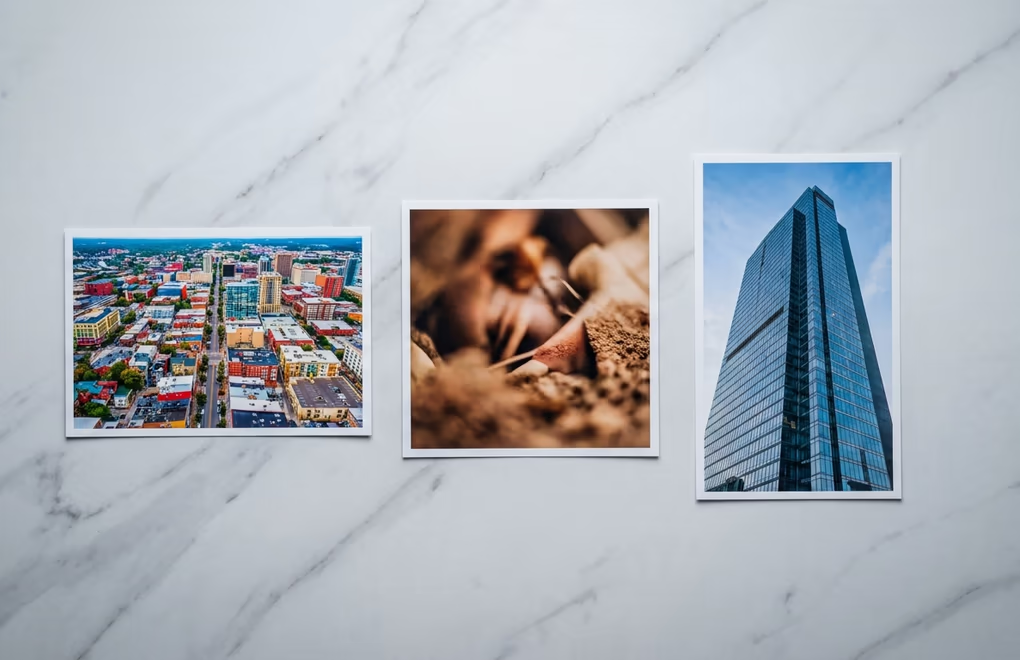
LinkedIn supports 3 aspect ratios for single-image posts, and each one displays differently in the feed. The ratio you pick determines how much screen real estate your post occupies when someone scrolls past it, which directly affects whether they stop to read.
| Format | Pixels | Aspect ratio | Best for |
|---|---|---|---|
| Landscape | 1200 x 627 | 1.91:1 | Blog previews, data visuals, screenshots |
| Square | 1200 x 1200 | 1:1 | Quotes, infographics, headshots |
| Vertical | 1200 x 1500 | 4:5 | Maximum feed space, engagement-first posts |
Vertical images at 1200 x 1500 take up the most space on mobile screens, and since over 60% of LinkedIn traffic comes from mobile devices, that extra real estate translates into more thumb-stops and more time spent looking at your content. If you're posting an image specifically to grab attention in the feed, vertical is the strongest pick in 2026.
Landscape at 1200 x 627 is the classic format and still works well for data visuals, screenshots, or any image that reads better wider than it is tall. Square at 1200 x 1200 splits the difference and displays well on both desktop and mobile without dramatic cropping in either direction.
When you upload multiple images to a single post, LinkedIn arranges them in a grid and crops each image to 1:1 (square). So if you're planning a multi-image post, design every image as 1080 x 1080 or 1200 x 1200 from the start to control what gets shown versus what gets cropped. The maximum is 20 images per post, but 2 to 4 images usually performs better than a large grid because the viewer can absorb each image without tapping to expand.
LinkedGrow's AI image generator creates images at the right LinkedIn dimensions automatically, so you can skip the manual resizing step entirely. You pick the aspect ratio in the generator, and the output is already sized for LinkedIn.
What are the right LinkedIn profile and banner dimensions?
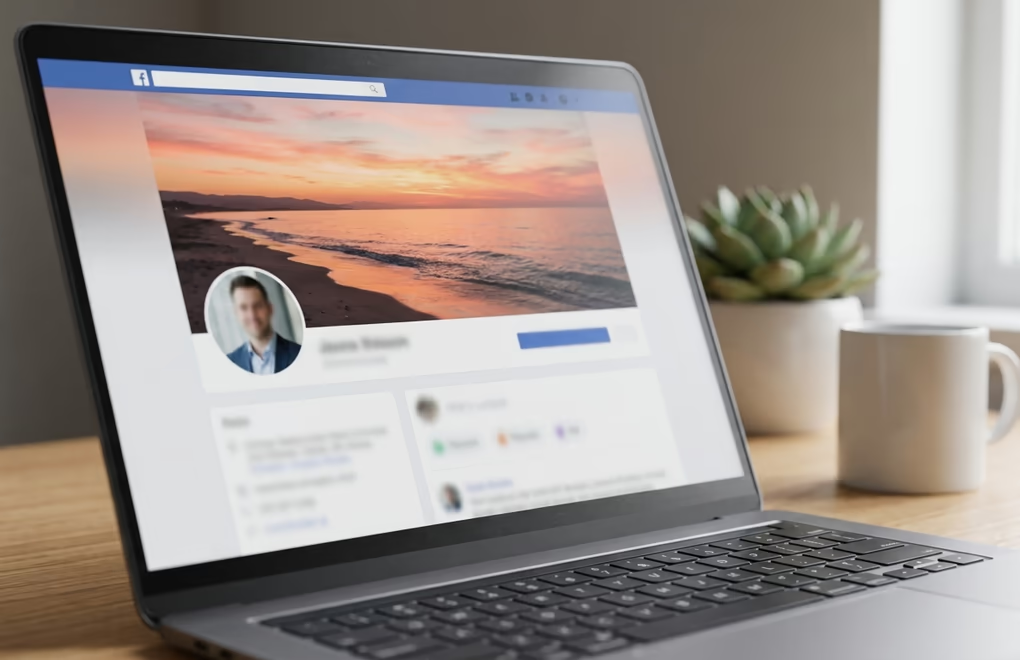
Your LinkedIn profile photo displays at 400 x 400 pixels, cropped into a circle on the profile page and shrunk to about 48 pixels in the feed next to your posts and comments. Upload at 800 x 800 or larger so LinkedIn can downscale cleanly instead of upscaling a small image, which always adds blur. The maximum file size is 8 MB, and LinkedIn accepts JPEG and PNG. For a deeper walkthrough on lighting, background color, and common photo mistakes, the LinkedIn profile picture tips article covers everything.
The personal profile banner (the wide background image behind your name) is 1584 x 396 pixels with a 4:1 aspect ratio. The safe zone for text and logos is the center 1200 x 300 pixels, because mobile devices crop approximately 190 pixels from each side. If you put a website URL or tagline near the edges, mobile users won't see it. The LinkedIn banner size breakdown has the safe zone maps and design templates for different industries.
One detail most articles skip: the profile picture circle overlaps the bottom-left of the banner on desktop and the bottom-center on mobile. That overlap area is dead space in your banner design. If you place a logo or call-to-action there, the profile circle will cover it depending on the device, so always keep the lower section of your banner free of critical content.
What size works for LinkedIn carousel slides?
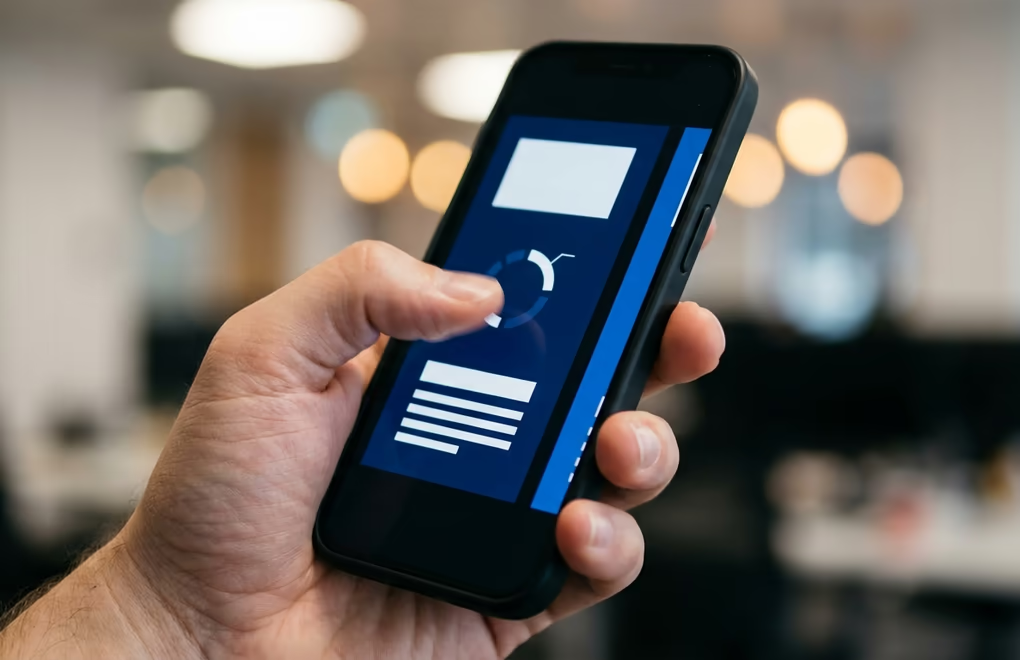
LinkedIn carousel slides should be 1080 x 1350 pixels in portrait orientation (4:5 ratio) for the best mobile reading experience, or 1080 x 1080 pixels if you prefer square slides. Portrait carousels take up more vertical space in the feed, which gives your content a bigger visual footprint and encourages people to swipe through more slides.
LinkedIn renders carousels from uploaded PDF or PPT files, and the platform allows up to 300 pages per document with a 100 MB maximum file size. For engagement, though, 7 to 10 slides is the range where most carousels perform best. Each slide should have large, readable text (minimum 24px font equivalent at 1080px width), because most viewers won't pinch-to-zoom on their phones.
If you're designing carousels for LinkedIn, the carousel templates and design walkthrough has 10 ready-to-use frameworks with the exact dimensions baked in. LinkedGrow's carousel generator also builds slides at the correct 1080 x 1350 size and exports them as PDF, so you can publish directly without resizing anything.
How does LinkedIn size link previews and article covers?
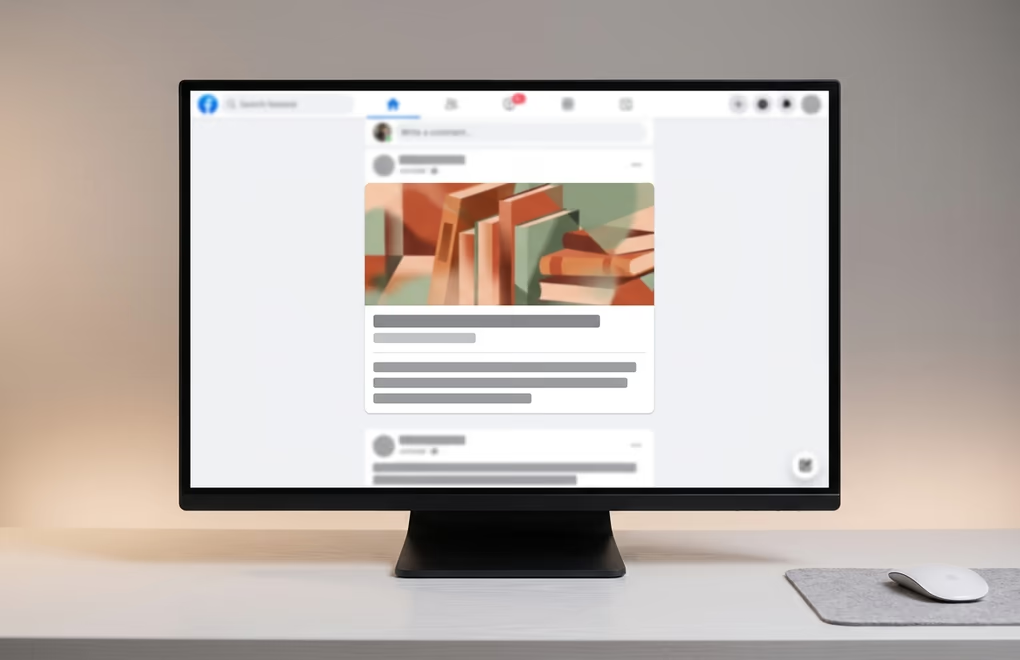
When you share a URL in a LinkedIn post, the platform pulls the Open Graph image from that page and displays it as a link preview card at 1200 x 627 pixels (1.91:1 ratio). If the OG image on your website is smaller than 200 pixels wide, LinkedIn shows it as a tiny thumbnail instead of the full-width card, which makes your post look incomplete and reduces clicks.
LinkedIn article cover images (the native long-form articles published inside LinkedIn) also display at 1200 x 627 pixels. If you publish articles through LinkedIn's editor, make sure your cover image hits that dimension or larger so it renders crisply in the feed preview and at the top of the article page. LinkedIn newsletter cover images follow the same 1200 x 627 spec, and the cover doubles as the image subscribers see in their email notification, so it needs to read well at smaller sizes too.
The number worth remembering is 1200 x 627, which is the most reused dimension on LinkedIn. If you only remember one number from this article, that's the one. It covers landscape post images, link preview cards, article covers, newsletter headers, and formatted post image attachments.
What image dimensions does a LinkedIn company page need?
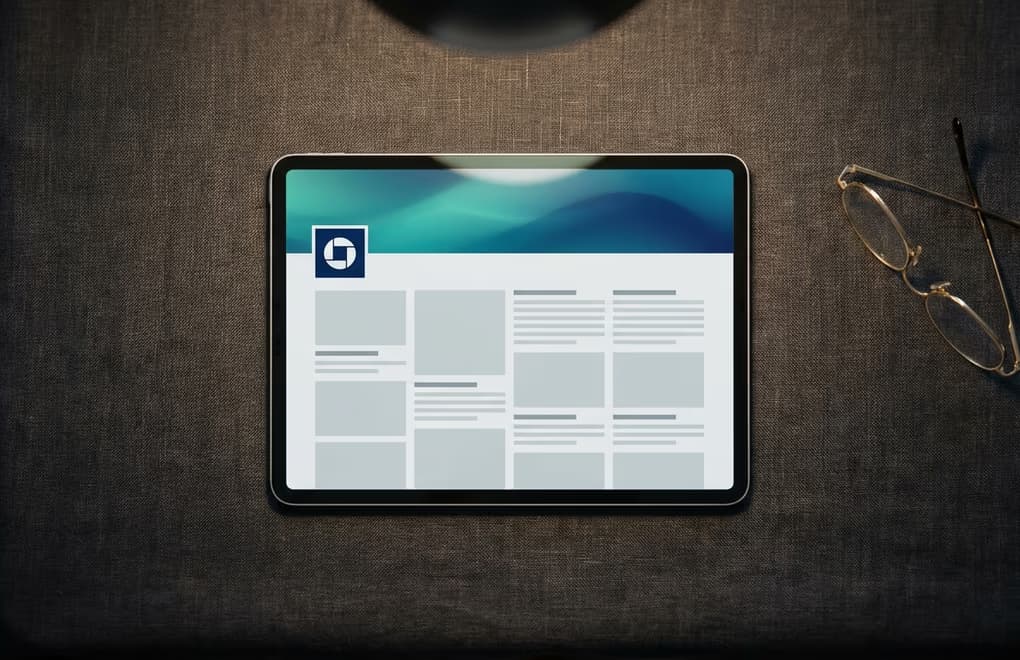
LinkedIn company pages have their own set of image specs that are separate from personal profile dimensions. The company logo should be 300 x 300 pixels (square) and uploaded in PNG format if your logo has transparent areas or sharp vector edges. LinkedIn displays this logo at various sizes across the platform, from the tiny 60 x 60 favicon next to company posts in the feed to the full-size version on your page, so upload at the highest quality you have.
| Company page image | Recommended size | Aspect ratio |
|---|---|---|
| Company logo | 300 x 300 px | 1:1 |
| Company cover | 1128 x 191 px | ~6:1 |
| Life tab hero | 1128 x 376 px | 3:1 |
| Life tab module | 502 x 282 px | 16:9 |
| Company photos | 900 x 600 px | 3:2 |
The company cover image is noticeably wider and shorter than the personal profile banner. At 1128 x 191 pixels, it's roughly a 6:1 ratio, which means you have very little vertical space to work with. Keep your design simple: a brand color background, a short tagline, and your website URL is usually enough. Anything more gets squeezed into a thin strip that's hard to read, especially on mobile where the dimensions compress further.
If your company uses LinkedIn's Life tab (the "Life" section on your page), the hero image there is 1128 x 376 pixels and the custom module images are 502 x 282 pixels. These are recruitment- focused visuals, so they typically show office culture, team photos, or branded employer content. The maximum file size for all company page images is 4 MB per LinkedIn's official specs.
How does LinkedIn compress your images?
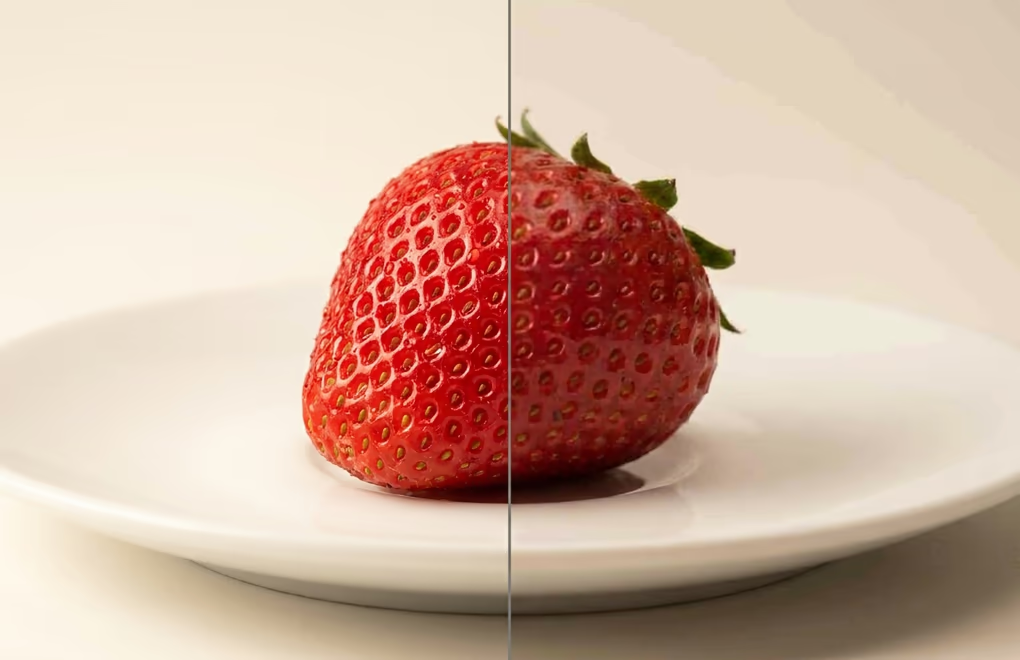
LinkedIn compresses every uploaded image, and there's no way to turn that off. The platform re-encodes your file to reduce bandwidth for its servers and for mobile users on slow connections. The result is that a perfectly sharp image on your computer can look noticeably softer or show JPEG artifacts (those blocky, blotchy patterns around edges) after LinkedIn processes it.
The compression gets worse when LinkedIn has to resize your image before compressing it, because the resize step itself introduces softness, and then the compression step adds artifacts on top of that. That double degradation is why uploading at the exact recommended dimensions matters so much. If your image is already the right size, LinkedIn skips the resize and only applies its standard compression pass, which is noticeably lighter.
There are 4 practical things you can do to minimize LinkedIn's compression damage. First, upload at the exact pixel dimensions for your chosen format so LinkedIn doesn't resize. Second, keep the file under 5 MB, because larger files trigger more aggressive compression. Third, use PNG for images with text, logos, or hard edges, because PNG compression is lossless and preserves sharp boundaries better through LinkedIn's re-encoding. And fourth, if you're uploading a JPEG, export it at 90-95% quality from your editor rather than 100%, because a 100% JPEG is often an unnecessarily large file that LinkedIn will compress down heavily anyway, while a 90% JPEG is already optimized and survives the re-encoding with less visible loss.
LinkedGrow generates post images at the exact LinkedIn-recommended pixels for each format, which means they bypass the resize step and only go through LinkedIn's lighter compression pass when you publish directly from the platform.
Which file format works best on LinkedIn?
LinkedIn accepts JPEG, PNG, and GIF for post images. The maximum file size is 10 MB per image. In practice, the format you choose should depend on what's in the image, because each format handles different content types better.
JPEG is the best choice for photographs, real-world scenes, headshots, and any image with smooth color gradients. JPEG compression works by blending adjacent pixels, which is invisible in photos but creates obvious fuzz around sharp text and logo edges. Export at 90-95% quality for the best balance between file size and visual quality.
PNG is the better choice for graphics, screenshots, images with text overlays, logos, and anything with sharp edges or flat color areas. PNG uses lossless compression, so there's no degradation at all before LinkedIn processes the file, and the sharp edges survive LinkedIn's re-encoding better than they would in a JPEG-then-re-encoded pipeline. The tradeoff is that PNG files are larger, so keep an eye on the 10 MB limit if you're uploading high-resolution graphics.
GIF is technically supported but isn't worth using for most LinkedIn content. LinkedIn doesn't auto-play GIFs in the feed in the same way Instagram or Twitter does, so the animation value is limited. If you want motion in your LinkedIn posts, native video or a carousel with progression across slides will perform better than a looping GIF.
All LinkedIn image sizes in one table
Here's every LinkedIn image dimension in one place for quick reference. Bookmark this table and come back whenever you're creating a new image for any part of the platform.
| Image type | Recommended pixels | Ratio | Max size |
|---|---|---|---|
| Post (landscape) | 1200 x 627 | 1.91:1 | 10 MB |
| Post (square) | 1200 x 1200 | 1:1 | 10 MB |
| Post (vertical) | 1200 x 1500 | 4:5 | 10 MB |
| Multi-image post | 1200 x 1200 | 1:1 | 10 MB each |
| Profile photo | 800 x 800+ | 1:1 | 8 MB |
| Personal banner | 1584 x 396 | 4:1 | 8 MB |
| Carousel slide | 1080 x 1350 | 4:5 | 100 MB (PDF) |
| Link preview | 1200 x 627 | 1.91:1 | Pulled from OG |
| Article cover | 1200 x 627 | 1.91:1 | 10 MB |
| Newsletter cover | 1200 x 627 | 1.91:1 | 10 MB |
| Company logo | 300 x 300 | 1:1 | 4 MB |
| Company cover | 1128 x 191 | ~6:1 | 4 MB |
| Life tab hero | 1128 x 376 | 3:1 | 4 MB |
This table covers every visual surface on LinkedIn that you can directly control as a creator or page admin. The specs come from LinkedIn's help documentation and from testing uploads in June 2026, so they reflect the current state of the platform rather than recycled numbers from older articles that may no longer be accurate.
Frequently asked questions about LinkedIn image sizes
The best LinkedIn post image size depends on the format you choose. Landscape images should be 1200 x 627 pixels (1.91:1 ratio), square images should be 1200 x 1200 pixels (1:1 ratio), and vertical images should be 1200 x 1500 pixels (4:5 ratio). Vertical images take up the most feed space on mobile and tend to get the highest engagement because they require a full thumb-stop to scroll past.
Yes. LinkedIn compresses every image you upload, regardless of quality settings on your end. To minimize visible quality loss, upload at the exact recommended pixel dimensions (so LinkedIn doesn't need to resize), keep your file under 5 MB, and use PNG for graphics with text or sharp edges and JPEG at 90-95% quality for photographs. Oversized files get compressed more aggressively than right-sized ones.
LinkedIn carousel slides should be 1080 x 1350 pixels in portrait orientation (4:5 ratio) for the best mobile experience, or 1080 x 1080 pixels if you prefer square slides. Upload carousels as PDF files to get the smoothest rendering and keep the total file under 100 MB. LinkedIn allows up to 300 pages per PDF, but 7 to 10 slides is the sweet spot for engagement.
Use PNG for any image that contains text, logos, screenshots, or sharp graphic elements, because PNG preserves hard edges without blur. Use JPEG at 90-95% quality for photographs, real-world scenes, and any image where color gradients matter more than edge sharpness. LinkedIn accepts both formats with a maximum file size of 10 MB per image.
The most common cause of blurry LinkedIn images is uploading a file that doesn't match the recommended dimensions. When LinkedIn resizes your image to fit its display area, the resampling adds visible softness. Upload at the exact pixel size for your chosen format (1200 x 627, 1200 x 1200, or 1200 x 1500), keep the file under 5 MB, and avoid re-saving a JPEG multiple times before uploading, because each save cycle adds compression artifacts.
The LinkedIn personal profile banner is 1584 x 396 pixels with a 4:1 aspect ratio. Upload at that exact resolution or larger so LinkedIn can scale it without adding blur. Keep all important content (text, logos, faces) within the center 1200 x 300 pixel safe zone, because mobile devices crop the left and right edges of the banner image.
Start creating LinkedIn images at the right size
Now you know the exact pixel dimensions for every image surface on LinkedIn, from feed posts and carousel slides to profile photos and company page banners. The fastest way to put these specs into practice is to create your images with LinkedGrow, which generates AI-powered post images, carousels, and graphics at the correct LinkedIn dimensions automatically. You bring your own AI API key, pick your format and aspect ratio, and LinkedGrow handles the sizing so every upload looks sharp in the feed. Try it free for 7 days with the Pro trial and skip the manual resizing step for good.
The post you keep meaning to write takes four minutes here.
LinkedGrow turns a link, a video or a rough idea into a LinkedIn post written in your own voice, then puts it in the calendar for the morning your audience is awake.
Start free for 7 days