
The fastest way to make your LinkedIn content look exactly like everyone else's is to reach for the same stock photo library everyone else uses. That office-meeting-with-laptops image, the handshake-over-a-desk, the person-staring-thoughtfully-at-a-whiteboard - your audience has seen all of them thousands of times, and their eyes slide past without registering. Learning how to use AI to generate professional images for LinkedIn posts gives you a fundamentally different option: visuals that are specific to your content, consistent with your brand, and impossible to find anywhere else because they were created for exactly this post and no other. LinkedGrow's AI image generation feature connects you to 14 models across three providers - Google Imagen, OpenAI, and FLUX via Replicate - so you can choose the right generation approach for each type of image you create, from photorealistic scenes to clean illustrated graphics.
This guide covers everything you need to generate images that perform: the technical specifications LinkedIn requires, how to match the right AI model to the right visual style, prompt engineering principles that consistently produce professional results, and how AI-generated images fit into LinkedIn's current content ecosystem. The goal is not to produce images that look artificial or trend-chasing but to give your posts a visual presence that is distinctive, on-brand, and earned rather than borrowed from a generic library.
Why do AI images outperform stock photos on LinkedIn?
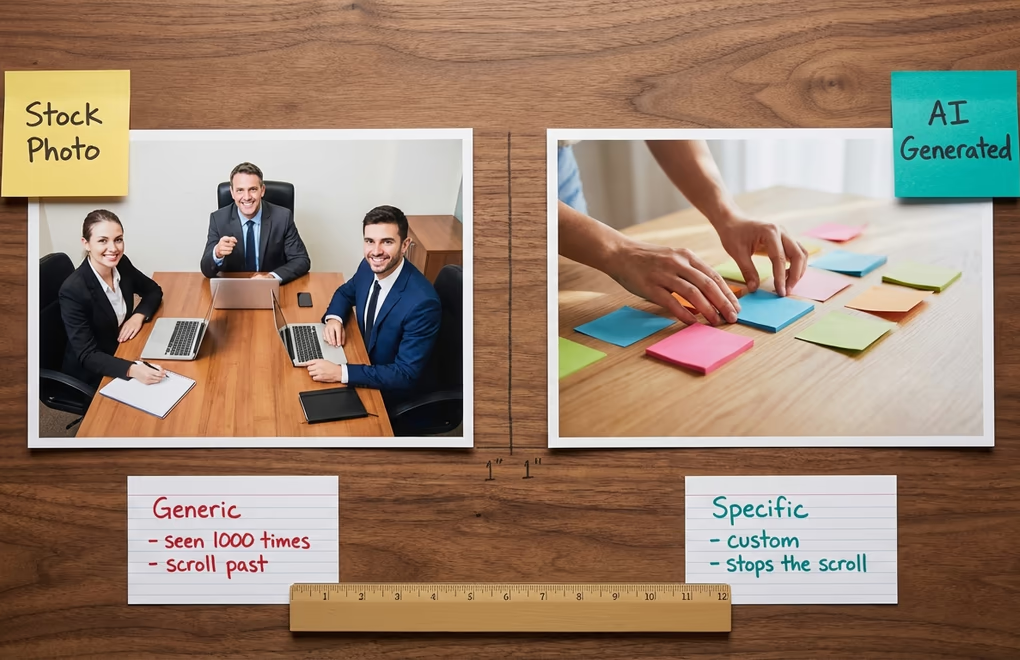
The case for custom AI images over stock photography on LinkedIn is not primarily aesthetic - it is strategic. LinkedIn's feed algorithm evaluates engagement signals in the first hour after a post is published to determine how widely to distribute it. An image that stops the scroll and earns a click to "see more" creates a positive signal; an image that gets skipped because it looks familiar creates a neutral-to-negative one. Stock photos, by definition, are designed to be universally acceptable rather than specifically attention-grabbing, which makes them safe but rarely effective at standing out in a professional feed where dozens of posts compete for the same finite attention.
There is also a specificity problem with stock photography. If you are writing a post about a niche challenge in SaaS onboarding, a B2B sales process, or a specific industry trend, the best available stock photo is a generic approximation of the concept rather than an actual representation of it. AI image generation lets you describe exactly what you want the image to convey and receive something that is specific to the idea you are communicating. That specificity creates a visual-textual coherence that makes your content feel more considered and authoritative to the reader, even if they cannot articulate exactly why.
The engagement data reinforces this logic. According to SocialInsider's LinkedIn benchmarks, single-image posts achieve a median engagement rate roughly 18% higher than text-only posts on LinkedIn - and carousel posts, which rely heavily on slide imagery, average the highest engagement of any format on the platform. The advantage of image-forward content is real and measurable, which makes the quality of those images a genuine competitive variable rather than a cosmetic afterthought. Once generating a custom image takes five minutes rather than thirty, the case for using stock photos at all becomes hard to make.
What LinkedIn image specifications should you generate?
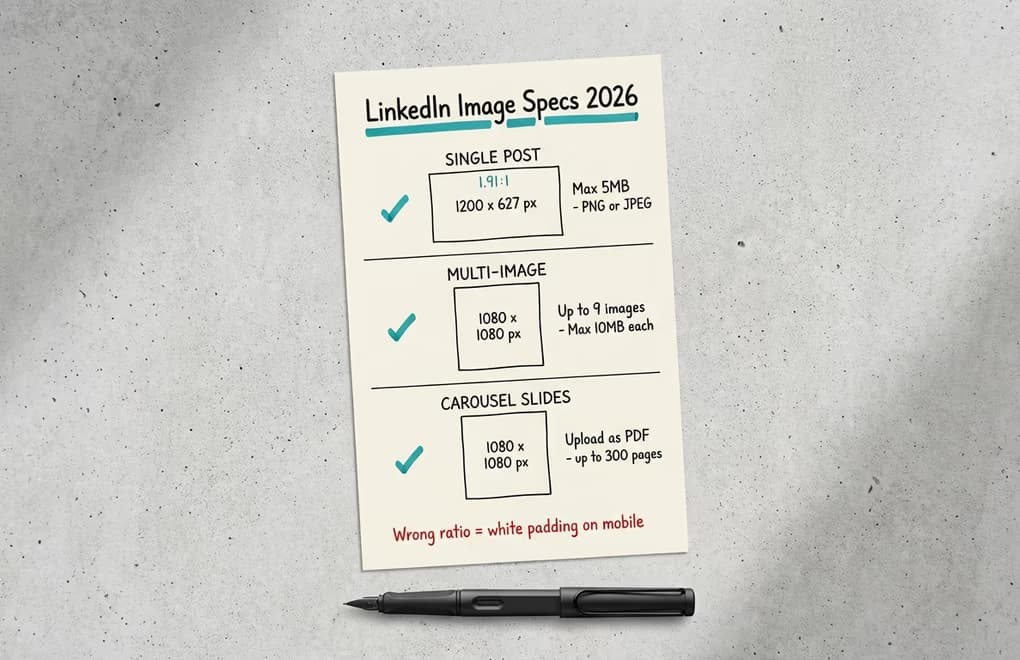
Generating an AI image with the wrong dimensions for LinkedIn is a common mistake that undermines an otherwise strong image. LinkedIn does not automatically crop images to fit - it adds white padding around anything that does not match the expected aspect ratio, which can make even a beautiful image look amateurish in the feed. Before you write a single prompt, decide which format you are creating for and set your target dimensions accordingly. For single image posts, the standard is 1200 by 627 pixels at a 1.91:1 aspect ratio, which displays natively across all devices without padding. For multi-image posts and carousel cover slides, 1080 by 1080 pixels square performs most consistently. You can check every current spec in detail using LinkedGrow's LinkedIn image sizes guide, which covers post images, banners, company pages, and thumbnails.
Once you have a candidate image, the free LinkedIn post preview tool shows you how the image and caption render together on desktop and mobile before you publish - catching the cropping issues that are easy to miss in a flat image editor. When working with AI image generators, you specify the desired aspect ratio in your generation settings rather than in the prompt text itself. Most modern models - including GPT Image 1.5, FLUX, and Imagen 4 - accept explicit aspect ratio or resolution parameters. For LinkedIn single posts, requesting a 1.91:1 landscape ratio means the generated image fills the feed space correctly without any post-processing resize. For carousel slides, square output at 1080 pixels works natively as PDF slides. LinkedGrow's image generation interface handles these settings automatically based on your selected post format, so you do not need to manually manage dimensions across different content types.
One additional technical consideration worth understanding: LinkedIn automatically detects AI-generated images using C2PA provenance standards and applies a small informational label to identified content. This label does not affect distribution, engagement, or visibility - it is a transparency feature, not a penalty. LinkedIn's content policy prohibits AI images only when they are used to deceive viewers about identity or facts, which applies to deepfakes and disinformation, not to brand imagery or illustrated content. You can generate and publish AI images freely for regular post content without any algorithmic downside.
Which AI model fits your image style?
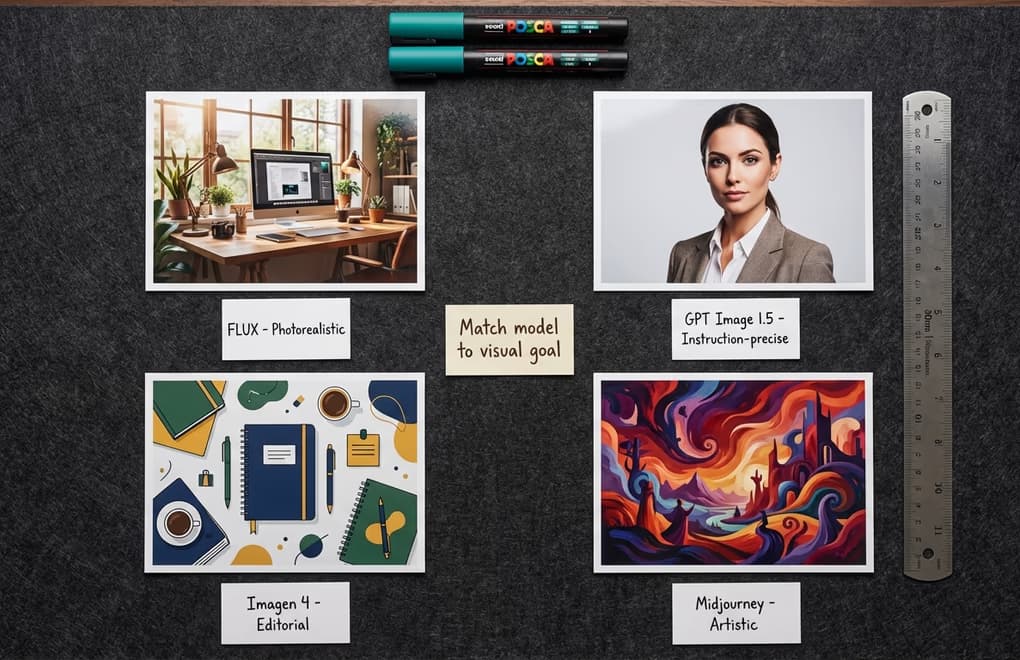
The three image generation providers available in LinkedGrow - Google, OpenAI, and Replicate - each have distinct strengths that make them suited to different types of LinkedIn imagery. Understanding those differences means you stop treating AI image generation as a one-model-fits-all tool and start matching the generator to the specific visual output you need for each post, which consistently produces better results than defaulting to the same model for everything.
OpenAI's GPT Image 1 and GPT Image 1.5 are the strongest choice when your image needs to follow a complex, specific description accurately or when the image must contain readable text - statistics, pull quotes, labels, or short callouts embedded in the visual. GPT Image 1.5 in particular handles instruction-following better than most alternatives, which means when you describe a specific scene in detail, what you get back closely matches what you asked for. This makes it the most reliable option for branded content where the visual needs to be precisely aligned with your post's message rather than a broadly relevant interpretation of it.
FLUX models via Replicate - particularly FLUX 1.1 Pro and FLUX 2 - produce the most photorealistic output of the three providers, making them the best choice for scene-based images that should look like actual photographs: a professional workspace, a creative brainstorming session, a product detail shot, or an atmospheric environment. When you want your image to feel documentary rather than illustrated or generated, FLUX delivers the tightest gap between prompt and realistic visual output. The trade-off is slightly lower accuracy on complex multi-element scenes compared to GPT Image 1.5.
Google's Imagen 4 and Imagen 4 Fast sit in the middle of the quality-speed spectrum and work especially well for clean, editorial-style imagery with a professional aesthetic - the kind of image that looks like it belongs in a business publication rather than a stock library or an AI art platform. Imagen 4 Ultra, the highest quality tier, is particularly good when you need visual polish for carousel covers or hero images where quality is more important than generation speed. For rapid iteration where you need multiple options to choose from, Imagen 4 Fast produces good results in a fraction of the time.
How do you write prompts for professional LinkedIn images?
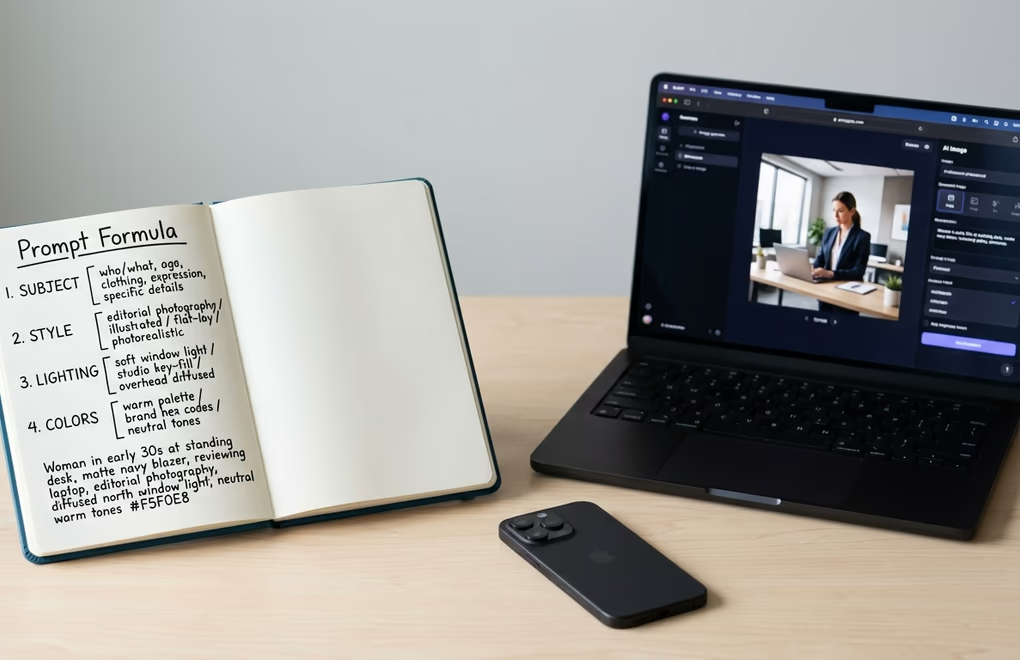
The difference between a mediocre AI image and an exceptional one rarely comes down to which model you chose - it comes down to the quality of the prompt. A vague prompt produces a generic result regardless of which generator processes it; a specific, structured prompt consistently produces something usable and often genuinely striking. The good news is that writing better prompts is a learnable skill that improves quickly once you understand the four components that matter most for professional LinkedIn imagery.
The subject is the most important element and should be described with as much specific detail as you can provide. Instead of "a professional at work," write "a woman in her early thirties reviewing data on a large curved monitor, wearing a dark navy blazer, in a modern open-plan office with soft window light." The more specific details you include about the person, their expression, their environment, and what they are doing, the more likely the model is to generate something that feels specific and real rather than generic and stock-like. If no person is needed, describe the objects, their arrangement, and their visual relationships with the same level of precision.
The style tells the model what genre of image you want. "Editorial photography for a business magazine" produces different output than "clean product photography on white background" or "illustrated flat-lay in a warm brand palette." For LinkedIn specifically, photorealistic editorial tends to perform best for personal-brand posts, while clean illustrated or infographic-style output works better for data or concept posts. Adding a style reference - "in the aesthetic of a Fast Company feature spread" or "styled like an Apple product photo" - gives the model a clear target even for styles that are harder to describe literally.
Lighting and color are the details most beginners skip but that most directly affect whether an image looks professional or amateur. Soft diffused light from a window creates a professional, editorial feel; harsh direct light makes images look cheap. Specifying a warm, neutral, or cool color palette ensures consistency with your brand's visual identity across multiple posts. And explicitly asking for "no watermarks, clean edges, no text unless specified" prevents the model from adding unnecessary visual noise that would require editing out. When you need readable text embedded in the image itself, specify the exact text verbatim in your prompt - any paraphrase will be misrendered - and use GPT Image 1.5 for the most accurate text rendering among the available models.
How do AI images work for carousels, posts, banners, and profiles?
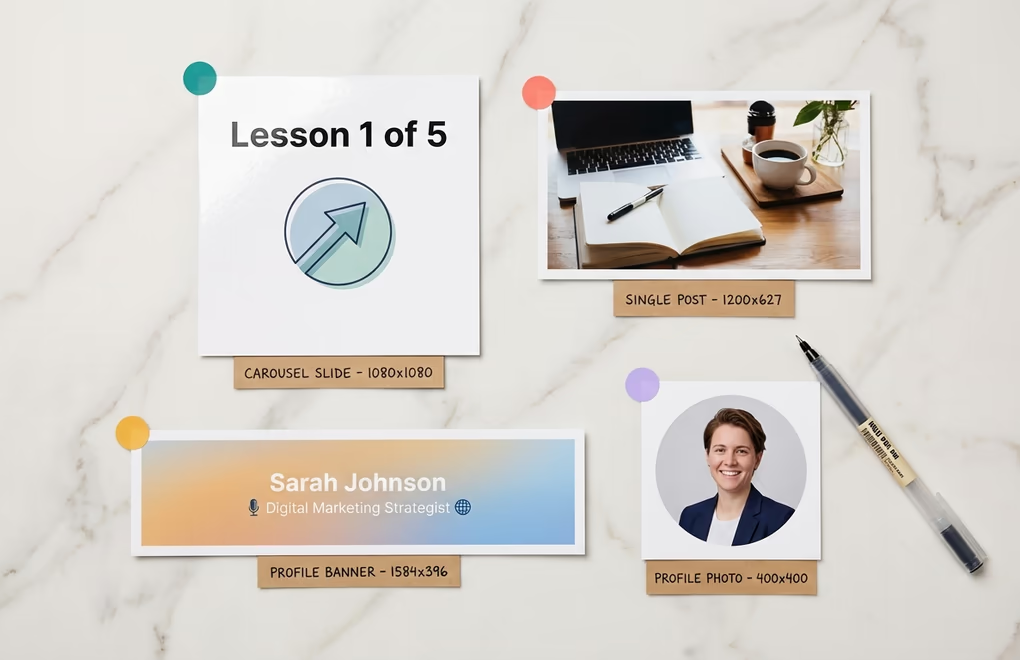
The most impactful application of AI image generation for LinkedIn is carousel content. Carousel posts consistently earn the highest engagement rates on LinkedIn because they keep readers on your post longer - swiping through slides creates a session-like experience that signals strong interest to the algorithm. Generating a consistent set of AI images for carousel slides, each visually cohesive in style and color palette, makes the difference between a carousel that looks professionally produced and one that looks assembled from mismatched sources. The key is generating all slides in a single session using the same model, style description, and color palette so they form a visual series rather than a collection of unrelated images.
For single-image posts, the most effective approach is to generate an image that adds context or emotion to your text rather than one that illustrates it literally. A post about leadership does not need an image of someone leading a meeting - it might be more powerful with an image of someone standing at the edge of a cliff looking at a horizon, or a close-up of handwritten notes that feel personal and considered. The image should complement the text without being redundant, creating a visual-textual combination that is more interesting than either element alone.
For profile photos and profile banners, AI generation has a specific and practical use case: if you do not have professional photography, a well-prompted AI image can serve as a professional-looking profile visual while you arrange a real shoot. LinkedGrow's free AI LinkedIn photo generator handles this specific use case, optimizing prompts and outputs specifically for profile imagery. For banners, AI-generated abstract or thematic backgrounds that align with your professional focus area and brand colors work particularly well and can be generated in a few minutes with a clear style prompt.
Start Generating Images That Actually Perform
The practical shift from stock photos to AI-generated images on LinkedIn is smaller than most people expect once you have a workflow for it. Write your post first, then ask yourself what visual would stop someone scrolling past it - not what image illustrates the topic generally, but what specific visual would create enough curiosity or resonance to make someone pause. Write that as a prompt with specific subject, style, lighting, and color details. Choose the right model for the output you need. Generate, review, and publish. The entire process takes five to ten minutes once you have the habit, and the quality advantage over stock photography compounds over time as your prompting instincts sharpen.
LinkedGrow's AI image generation feature gives you access to all three providers under a single interface with your own API keys through the BYOK model, which means generation costs go directly to Google, OpenAI, or Replicate rather than through a markup. For creators who publish image-forward content regularly, that model makes professional-quality custom imagery a practical daily tool rather than an occasional splurge.
Frequently Asked Questions
No. LinkedIn has no policy penalizing AI-generated images in regular posts. The platform automatically adds a small AI label (via C2PA detection) to identified AI images for transparency, but this is informational only and does not affect reach, distribution, or engagement. The only restriction applies to AI images used to deceive or misrepresent identity.
For a single image post, 1200 by 627 pixels at a 1.91:1 aspect ratio is the standard. For multi-image posts, 1080 by 1080 pixels square works best. Avoid non-standard aspect ratios as LinkedIn adds white padding on mobile, which reduces visual impact and can make your post look unpolished.
It depends on your goal. GPT Image 1.5 excels at following complex instructions and rendering text inside images accurately. FLUX 1.1 Pro delivers the most photorealistic results for scene-based images. Google Imagen 4 offers strong quality with good detail. LinkedGrow gives you access to all three providers so you can choose per post.
Be specific about four things: the visual subject (what is in the image), the style (photorealistic, illustrated, editorial), the composition (close-up, overhead, wide shot), and the color palette or mood. Mention LinkedIn image dimensions and avoid asking for multiple people if text accuracy matters, as AI still struggles with multi-person text rendering.
Yes. Single-image posts average around 18% higher engagement than text-only posts. LinkedIn carousels, which are multi-slide PDFs, perform even better and consistently earn the highest engagement rates of any format on the platform, making AI image generation especially valuable for carousel content.
The post you keep meaning to write takes four minutes here.
LinkedGrow turns a link, a video or a rough idea into a LinkedIn post written in your own voice, then puts it in the calendar for the morning your audience is awake.
Start free for 7 days