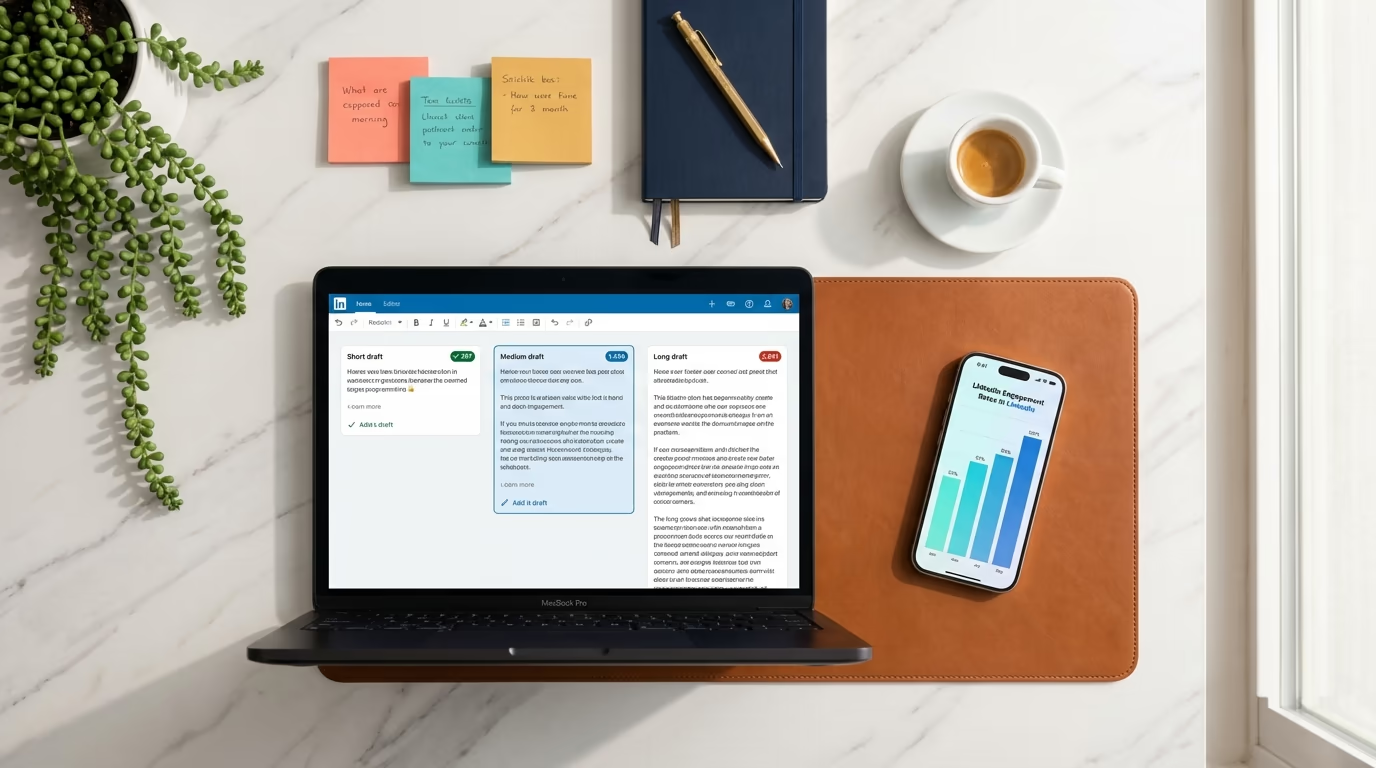

You scheduled a LinkedIn post for Thursday morning, closed your laptop, and went about your day. Now it's Wednesday night and you want to double-check the wording before it goes live, but LinkedIn doesn't exactly make it obvious where your scheduled posts went. There's no big "Scheduled" tab in the main navigation, no notification reminding you what's queued up, and no inbox-style list of pending content waiting for your review.
That confusion is why "how to view scheduled posts on LinkedIn" is one of the most-searched scheduling questions on the platform. The feature exists, it works, and it's actually reliable, but the way LinkedIn surfaces your scheduled content is buried deep enough that people assume the post vanished after they set the timer. LinkedGrow is a LinkedIn scheduling and content creation tool that solves this with a visual content calendar, but even if you're using LinkedIn's native scheduler today, this article will show you exactly where to find your scheduled posts on both desktop and mobile so you never lose track of queued content again.
Where does LinkedIn store your scheduled posts?
LinkedIn stores your scheduled posts in two places depending on whether you're posting from a personal profile or a company page. For personal profiles, scheduled posts live in the Activity section of your profile alongside your published posts, articles, and comments. For company pages, they're accessible through the Content tab in the page's admin dashboard.

The reason most people struggle to find them is that LinkedIn doesn't treat scheduled posts as a separate content type with its own dedicated page. Instead, they sit quietly inside the same feed where your published content appears, marked only by a small clock icon and the scheduled date. If you've published dozens of posts over the past few months, your scheduled ones can get lost in the scroll, especially on mobile where the Activity section loads in a compact format with limited filtering options.
Company page admins have it slightly easier because LinkedIn provides a Content tab that separates scheduled content from published content. You can filter by status to see only what's pending, which makes managing a company content queue more practical. Personal profiles don't get that filter, which is one of the reasons many creators and professionals eventually move to a dedicated scheduling tool that provides a proper dashboard for all pending content.
How do you view scheduled posts on LinkedIn desktop?
On desktop, you can view your scheduled LinkedIn posts through two paths, and both take fewer than 30 seconds once you know where to look. The most direct route starts from your profile page, which is where LinkedIn keeps all of your content activity in one place.
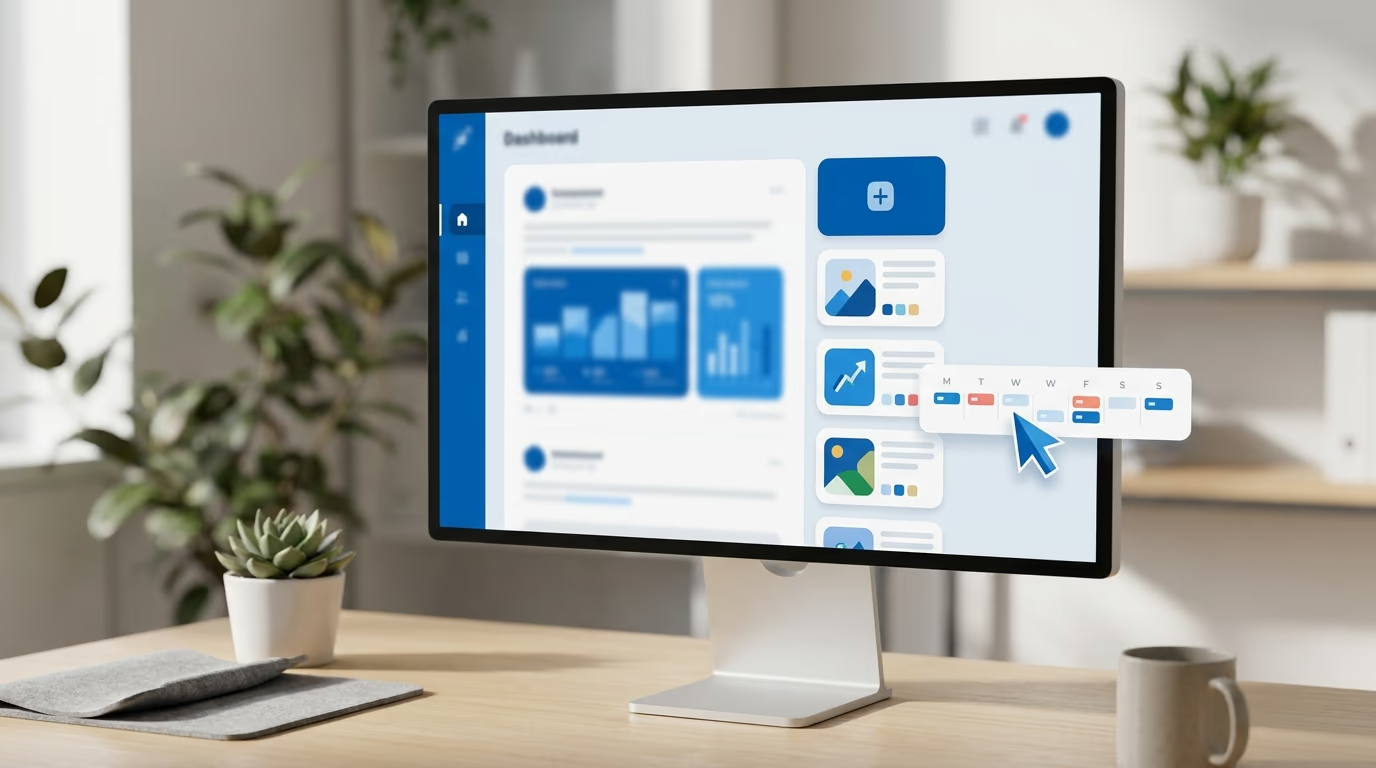
Open LinkedIn in your browser and click your profile picture in the top navigation bar, then select "View Profile" from the dropdown. Scroll down past your headline and About section until you reach the Activity section, which shows a summary of your recent posts, comments, and articles. Click "Show all activity" to expand the full list, then use the "Posts" filter at the top to narrow the view. Your scheduled posts will appear in this filtered list with a clock badge and the date and time they're set to publish. Click on any scheduled post to preview it, and from there you can edit the text, change the scheduled time, or cancel it entirely.
The second path goes through the post composer itself. Click "Start a post" from your home feed or profile page, and look for the clock icon at the bottom of the composer window next to the Post button. Clicking that icon opens the scheduling interface, and if you already have posts queued up, you'll see a link to "View scheduled posts" that takes you directly to your pending content. This route is quicker if you're already in the middle of creating new content and want to check what's already in the queue before scheduling another piece.
For company pages, the process is slightly different. Navigate to your company page, click the "Content" tab at the top of the admin view, and filter by "Scheduled" to see only posts that haven't published yet. This view shows each post with its scheduled date, the admin who created it, and options to edit or delete. If you manage multiple company pages, you'll need to switch between them individually since LinkedIn doesn't offer a unified dashboard that shows scheduled content across all pages at once.
How do you find scheduled posts on the LinkedIn mobile app?
Finding scheduled posts on the LinkedIn mobile app follows the same general logic as desktop, but the smaller screen means the steps feel less intuitive. The Activity section exists on mobile, though LinkedIn buries it deeper in the profile view and doesn't always show the scheduling badge as prominently as the desktop version does.

Open the LinkedIn app and tap your profile picture in the top-left corner, then tap "View Profile" to open your full profile. Scroll down to the Activity section and tap "Show all activity" to load the complete list. From there, look for posts marked with a clock icon and a future date. Tapping on a scheduled post opens a preview where you can read the full text, but editing options on mobile are more limited than what you get on desktop. You can typically delete a scheduled post from the three-dot menu, but changing the scheduled time or making substantial text edits often works better on a laptop where the composer gives you the full editing interface.
One quirk worth knowing: the mobile app occasionally shows a sync delay where a post you just scheduled on desktop doesn't appear on your phone for a few minutes. If you scheduled something on your laptop and immediately open the app to check, give it a moment. Force quitting and reopening the app or pulling down to refresh the Activity feed usually resolves the delay. Company page scheduled posts on mobile follow the same pattern but are accessible through the page admin section, which you can reach by navigating to your company page and looking for the content management area.
Can you edit, reschedule, or delete a scheduled LinkedIn post?
Yes, you can do all three, and LinkedIn gives you full control over scheduled content right up until the moment it publishes. Once you find a scheduled post using the methods above, click the three-dot menu (or the edit icon, depending on whether you're on desktop or mobile) to access your options.
Editing lets you change the text, swap out images or documents, adjust hashtags, and modify who can see the post. The composer reopens with your original content loaded, and you can make changes just like you would when writing a new post. After editing, you can either keep the original schedule or pick a new date and time before saving. One thing to watch for: LinkedIn doesn't auto-save edits to scheduled posts, so if you close the composer without clicking the save or reschedule button, your changes won't stick.
Rescheduling works through the same edit flow. Open the scheduled post, click the clock icon or the scheduled date, and pick a new time. The scheduler enforces the same constraints as when you first scheduled it: the new time must be at least 15 minutes from now and no more than 90 days out. If you need to shift a post from 8 AM to noon on the same day, that takes about five seconds.
Deleting a scheduled post removes it permanently. LinkedIn doesn't move deleted scheduled posts to a trash folder or give you a way to recover them, so double-check before you confirm. If you want to keep the content but remove it from the schedule, editing it and saving as a draft is a safer option than deleting it outright. Company page admins can edit and delete scheduled posts created by other admins on the same page, which is useful for team workflows where one person drafts and another reviews before publication.
What are the limits of LinkedIn's built-in post scheduler?
LinkedIn's native scheduler handles basic scheduling well enough, but it has a few constraints that become frustrating the moment you try to plan content more than a week or two ahead. Understanding these limits helps you decide whether the built-in tool is enough for your workflow or whether you need something more capable.
The 90-day scheduling window is the first wall most people run into. If you batch-create a full quarter of content, you can only schedule the first three months, and anything beyond that sits in a notes app or document waiting for the calendar to catch up. The 15-minute minimum lead time is less of an issue for planned content, but it means you can't schedule a post to go live "right now" if you decide you want to stagger two posts by a few minutes.
There's no calendar view in LinkedIn's native scheduler. You can see a list of your scheduled posts, but you can't visualize them on a weekly or monthly calendar to check for gaps, overlaps, or patterns in your posting frequency. If you're posting three times per week and want to confirm that Tuesday, Wednesday, and Thursday all have something queued, you need to scroll through the list and do the mental math yourself. A visual content calendar solves this immediately because you can see the entire month at a glance and spot empty days without any effort.
Timezone handling is another rough edge. LinkedIn schedules posts in your account's timezone, but it doesn't make it easy to schedule for a different timezone if your audience is primarily in another region. You have to manually calculate the offset every time, which leads to mistakes when daylight saving time shifts kick in. The native scheduler also doesn't support bulk scheduling, so if you draft 10 posts in a batch session, you need to schedule each one individually through the composer rather than uploading them all at once with pre-assigned times.
How does a dedicated scheduling tool improve the workflow?
A dedicated LinkedIn scheduling tool picks up where the native scheduler drops off by giving you a proper command center for your content pipeline. The biggest difference is visibility: instead of hunting through your Activity section to find what's queued, tools like LinkedGrow's post scheduling show every draft, scheduled, and published post on a single dashboard with clear status indicators and dates.
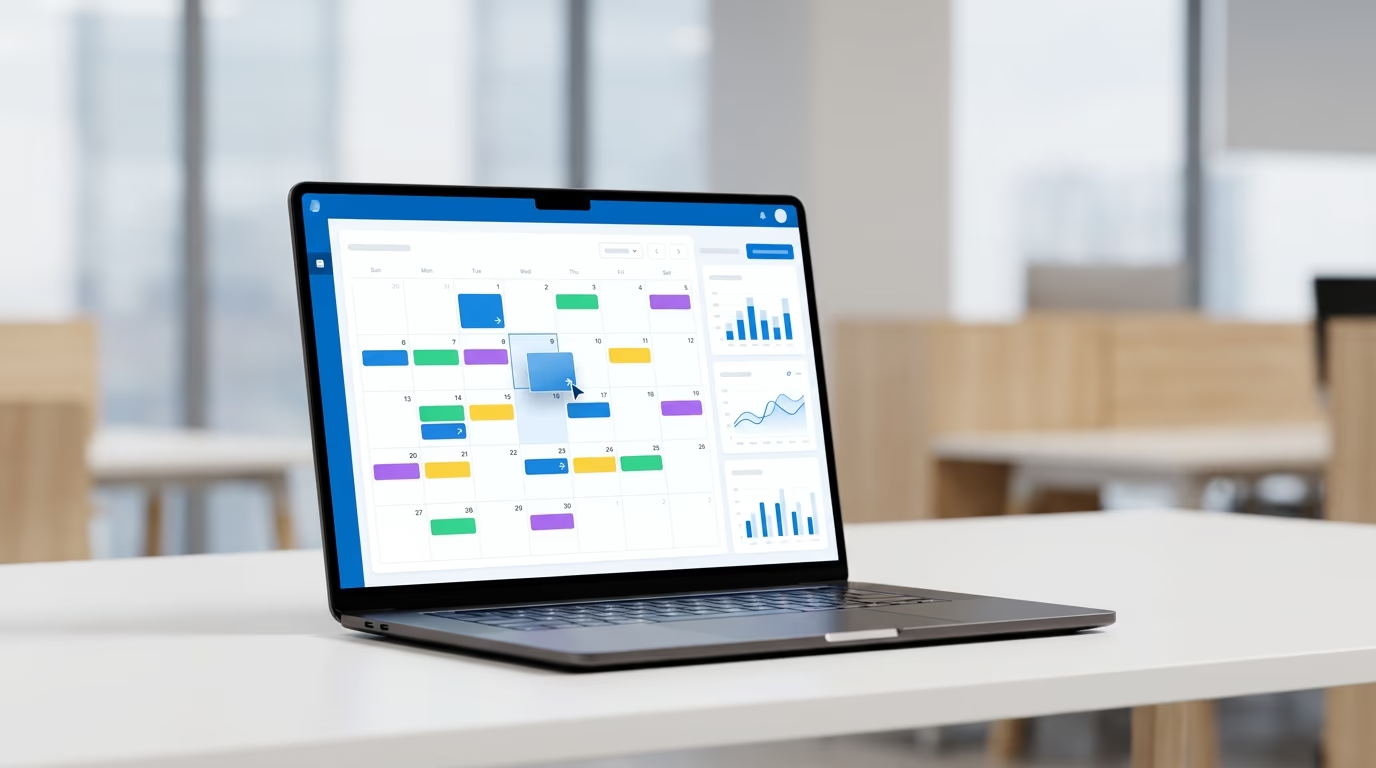
LinkedGrow adds a visual content calendar that shows your scheduled posts on a weekly and monthly grid, so you can see at a glance whether you have content lined up for every publishing day. Gaps in the calendar are obvious, which makes it easy to spot a missing Tuesday post before the day arrives rather than after. The calendar also lets you drag posts to different days and times, which is faster than opening each one individually and resetting the schedule through a date picker.
Beyond scheduling, LinkedGrow combines content creation with scheduling in the same interface. You can generate a post draft with AI that's trained on your writing voice, edit it in a rich text editor with a live LinkedIn preview, and schedule it for the optimal time slot without switching between apps. The AI drafting alone saves most users 30 to 45 minutes per post compared to writing from scratch, and the content strategy stays intact because the tool handles production while you focus on the ideas and direction. LinkedGrow uses a BYOK (bring your own key) model where you connect your own AI API key from providers like OpenAI, Anthropic, or Google, so the typical monthly AI cost runs between $2 and $4 instead of the flat subscription fees other platforms charge for built-in AI.
The practical difference between LinkedIn's native scheduler and a dedicated tool comes down to volume and visibility. If you post once or twice a week and don't mind the list-based view, the native scheduler works fine. If you're posting three to five times per week, managing content for a company page alongside your personal profile, or working with a team that needs shared access to the content queue, a dedicated tool turns scheduling from a manual chore into a system that runs itself.
Batch, schedule, and stop worrying about timing
Scheduling on LinkedIn doesn't have to be a guessing game. Now that you know where your scheduled posts live and how to manage them on both desktop and mobile, the next step is building a routine around batch creation so you're never scrambling to write something the morning it's supposed to go live.
If you're ready to move past LinkedIn's native scheduler and get a proper calendar view, AI-assisted drafting, and voice-matched content generation in one place, try LinkedGrow free for 7 days with a full Pro trial, everything included. Draft your next week of posts in a single session, schedule them to publish at the times your audience is most active, and spend the rest of the week doing actual work instead of staring at a blank post composer.
Frequently asked questions
Yes. LinkedIn added a native scheduler in 2022 that lets you pick a future date and time directly from the post composer. Click the clock icon next to the Post button, choose your date and time, and click Schedule. The post will publish automatically at that time. The native scheduler works for both personal profiles and company pages, though company pages require admin or content admin access.
LinkedIn's native scheduler lets you schedule posts up to 90 days in advance. The earliest you can schedule is 15 minutes from the current time. If you need to plan further than 90 days ahead, a dedicated scheduling tool like LinkedGrow removes that ceiling and lets you queue content as far out as you want.
The most common reason is looking in the wrong place. LinkedIn doesn't send you to a dedicated scheduling dashboard after you schedule a post, so many people assume the post disappeared. Go to your profile, open the Activity section, and filter by Posts. Scheduled posts appear there with a clock badge showing the scheduled date and time. If you still don't see them, try logging out and back in, or switch from the mobile app to desktop to rule out a sync delay.
No. LinkedIn treats scheduled posts the same way it treats manually published posts once they go live. The algorithm evaluates the content based on relevance, engagement velocity, and dwell time regardless of whether you clicked Post in real time or scheduled it hours earlier. The practical advantage of scheduling is that it lets you publish at peak engagement windows even when you're not online, which can actually improve your reach compared to posting whenever you happen to remember.
Yes, but only if you're a super admin or content admin of that page. Go to your company page, click Start a post, compose your content, and use the clock icon to schedule it. You can view and manage scheduled company page posts from the Content tab in the page admin dashboard. Third-party tools like LinkedGrow also support company page scheduling and add features like a shared content calendar that makes team coordination easier.
The post you keep meaning to write takes four minutes here.
LinkedGrow turns a link, a video or a rough idea into a LinkedIn post written in your own voice, then puts it in the calendar for the morning your audience is awake.
Start free for 7 days