

How do you get verified on LinkedIn?
To get verified on LinkedIn, open the app, go to your profile, and start verification from the prompt or from Settings. You can prove your identity through a partner like CLEAR or Persona, confirm your job with a work email, or verify your school. Every method is free, no Premium subscription is required, and the badge appears next to your name once you finish.
The small checkmark next to a name on LinkedIn does something quiet but real. It tells everyone who lands on your profile that you are a verified, genuine person and not a bot or an impersonator, and on a platform crawling with fake recruiters and cloned executives, that reassurance carries weight. The good news is that earning it costs nothing and usually takes a few minutes.
The confusing part is that LinkedIn spreads the instructions across a dozen different help pages, one for each method and each country, so almost nobody sees the whole picture in one place. There is no single button labeled "verify me". Instead there are three separate kinds of verification, several identity partners depending on where you live, and a completely different process for a business page. This guide pulls all of it together and keeps it current for 2026.
You will see exactly how to verify your identity, how to confirm your workplace, how to get a company page verified, and what to do when a method fails or is not available where you are. Then there is an honest look at whether the badge is worth the effort, because the numbers people quote about it need a little context. Optimizing your LinkedIn profile is the foundation, and verification is one of the fastest trust signals you can add on top of it.
A quick note on where this fits. LinkedGrow is a LinkedIn content creation and scheduling platform, so verification is not something the tool does for you. It is a native LinkedIn feature you set up once, and then the work of actually growing an audience begins. Getting verified is the easy first step, and the rest of this article covers it method by method so you can pick the one that fits your situation.
What does the LinkedIn verified badge actually mean?
A LinkedIn verified badge means LinkedIn has confirmed something specific about you through a trusted source, and there are three things it can confirm: your real-world identity, the workplace you list, or the school you attended. The badge is a fact-check rather than a status symbol you earn from a big following, and the small checkmark simply tells other members that the check passed.

This is where LinkedIn works differently from other platforms. On X or Instagram, the check has become something you can buy with a monthly subscription, which turned it into a paid perk rather than a signal of anything. LinkedIn deliberately went the other way. The badge is always free, it is never for sale, and it only ever appears because a real check happened. If a service offers to sell you a verified badge, it is a scam, and using one would put your account at risk.
Because there are three separate things the badge can confirm, you can stack them. Someone can verify their identity through a government ID, then verify their employer through a work email, and both details show on the profile. You are never locked into a single method, and adding one does not stop you from adding another later. Every verification is also optional and reversible, so you can remove any of them from your profile whenever you want without affecting the rest of your account.
Is getting verified on LinkedIn worth it?
Getting verified is worth it for the trust it signals, but not for the reach boost some people promise, and the difference matters. LinkedIn reports that verified members see 60% more profile views and 50% more engagement on average. Those numbers are real and come from LinkedIn itself, but they describe a correlation, not a magic switch that the badge flips on your behalf.

The people who bother to get verified tend to be the same people who keep their profiles current, post regularly, and reply to comments, so of course they see more views. The badge is one ingredient in that mix, not the cause of the whole result. If you add a checkmark and then post nothing, your profile views will not climb, because there is nothing new for the feed to distribute. You can read how distribution really works in our breakdown of the LinkedIn algorithm in 2026.
Where the badge genuinely helps is in the moments where a stranger is deciding whether to trust you. A verified profile makes a cold connection request feel safer to accept, it reassures a prospect that the person messaging them is real, and it protects you against someone cloning your name and photo to scam your network. Those small wins add up, and they are exactly why the badge tends to lift profile views for active users. So the honest verdict is simple: get verified because it is free and takes minutes, treat it as a trust signal rather than a growth lever, and put your real effort into the content that follows.
How do you get verified with identity verification?
Identity verification confirms you are a real person using a government ID, and which partner handles it depends entirely on the country you are in. LinkedIn does not check your documents itself. Instead it hands the job to an outside identity company, and the flow you get inside the app changes based on your location, though the badge you end up with is the same everywhere.

In the United States, Canada, and Mexico, the partner is CLEAR, the same company behind the airport security lanes. You need a valid government-issued ID and a phone number registered in one of those countries, and the check itself is free and separate from the paid CLEAR Plus product. In many other countries, the partner is Persona, and that route asks for a passport with an NFC chip, the contactless kind you tap against your phone. In India, LinkedIn uses DigiLocker credentials instead of either one.
The steps are almost identical whichever partner you get. Open the LinkedIn app on your phone, since identity verification runs through mobile rather than desktop, go to your profile, and look for the verification option in the introduction card or under Settings. Tap through to the partner, follow the prompts to photograph your ID or tap your passport, take a quick selfie so the system can match your face to the document, and wait. Most people finish in a few minutes, and the badge appears on the profile once the match succeeds.
How do you get verified through your workplace?
Workplace verification confirms that you really work where your profile says you do, and the most common way to earn it is through your company email. When your employer is part of LinkedIn's supported companies, you enter your work email address, LinkedIn sends a code to that inbox, and you type the code back in to confirm. That is the whole process, and it costs nothing.

There are a few other routes to the same workplace badge, and which one you get depends on what your employer has set up. Some companies verify their people through Microsoft Entra Verified ID, a corporate identity system the company enables on its side, so employees see the badge appear without doing much at all. Others use a LinkedIn Learning or Recruiter license to confirm their staff, and recruiters verified that way get a dedicated verified recruiter label rather than the standard checkmark.
If your work email does not trigger the option, it usually means your company has not been added to the supported list yet, and there is no workaround you can force from your side. The list keeps expanding, so checking again in a month is worth the effort. In the meantime, identity verification through CLEAR or Persona is open to individuals regardless of employer, so you can earn a badge that way while you wait for the workplace option to reach your company. Both badges can sit on the same profile once they do.
How do you verify a LinkedIn company page?
Verifying a company page is a separate process from personal verification, and it runs through a request and a waitlist rather than an instant check. A page admin starts it from the verification controls on the page, and instead of scanning an ID, LinkedIn weighs whether the page looks legitimate before it grants the badge. This is the piece most guides skip, so it is worth walking through.

To submit, open your company page as an admin, find the verification section in the page settings, and request a review. LinkedIn then looks at several signals to decide whether the page is genuine. It checks that the details are accurate, meaning the location and website URL match a real business, that the page has an active admin who manages it, and that the page follows LinkedIn's policies. A page that matches the company listed in an admin's own experience section carries more weight, which is one more reason personal verification helps here.
The catch is that submitting a request adds you to a waitlist rather than granting the badge on the spot. LinkedIn reviews these periodically, approval is not guaranteed, and the company has said it is expanding availability over time. So the practical move for a business is to get the page in good shape first, with a filled-out profile, correct contact details, and an admin who posts, then submit and be patient. A verified page reassures customers that they are dealing with the real business and protects the brand from impersonators who spin up copycat pages.
What if LinkedIn verification is not working?
When verification stalls or fails, the cause is almost always one of a handful of predictable snags, and most have a clean fix. The single most common one is a mismatch, where the name or details on your ID do not line up with the name on your profile, so the check quietly rejects you. Making your profile match your documents exactly before you start solves the majority of failed attempts.
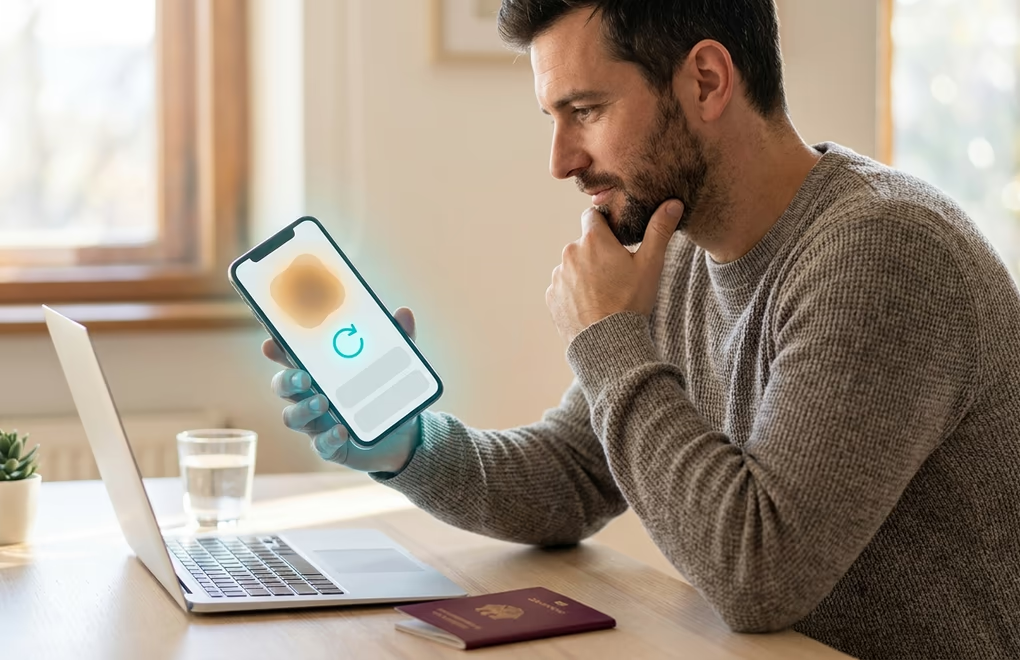
The passport requirement trips up a lot of people outside North America, because Persona needs the NFC chip and older passports do not have one. If your passport cannot be tapped, that route is closed until you renew it, though CLEAR-based verification does not need a passport at all where it is offered. A work email that does nothing when you enter it points to a company that is not yet on the supported list, and that is a waiting game rather than a bug you can fix. An incomplete profile or a photo that is clearly not a real headshot can also cause a rejection, since the system is looking for a believable, active member.
If everything looks right and the check still fails, wait a day and try again, because some attempts route to a manual review that takes a little time to clear. Verification also runs best inside the mobile app on a current version, so an outdated app is worth ruling out before you assume something bigger is wrong. And it is worth repeating that the only real path is through LinkedIn and its official partners. No third-party service can hand you a legitimate badge, and any that claims to is either wasting your money or endangering your account.
Verification opens the door, content walks you through it
Getting verified is one of the highest-return, lowest-effort things you can do on LinkedIn, which is exactly why you should knock it out and then stop thinking about it. A few minutes with your ID or your work email earns a signal that quietly reassures everyone who visits your profile for years afterward. But the badge is a starting line, not a finish line, and treating it as the goal is where people stall. The trust it buys only pays off if there is something worth trusting on the other side.
That something is a steady stream of posts that show you know your field, which is the part most professionals never keep up with. This is where LinkedGrow fits, because it turns the hardest part of showing up consistently into something manageable. Its voice training learns how you write from a few of your own posts, so a rough idea becomes a draft that already sounds like you, and you keep the final edit. Pair a verified, well-built profile with a real personal brand and a posting habit you can sustain, and the checkmark starts doing the job it is meant to do.
So verify your account today, since it is free and fast, then point your energy at the work that actually builds a professional presence, which is the content. If staying consistent is the wall you keep hitting, you can start a 7-day Pro trial today, connect your newly verified profile, and see whether drafting on your own voice makes posting something you can finally keep up with. The badge gets you taken seriously, and the content keeps you there.
Frequently asked questions about LinkedIn verification
Open the LinkedIn app, go to your profile, and tap the verification prompt or find it under Settings. From there you can verify your identity through a partner like CLEAR or Persona, confirm your workplace with a work email, or verify your school. Every method is free, and you can add more than one badge to the same profile.
Yes, LinkedIn verification is completely free and works on any account, whether you pay for Premium or not. You never have to buy anything to get a verified badge. Anyone selling a verified badge or a shortcut to one is running a scam, because LinkedIn is the only place the real badge comes from.
Identity and workplace verification are often instant or take a few minutes once you finish the steps, since a partner checks your ID or a code confirms your work email. If something needs a manual review, it can take a day or two. Company page verification is different, because you join a waitlist that LinkedIn reviews on its own schedule.
LinkedIn reports that verified members see 60% more profile views and 50% more engagement on average, though that reflects how active verified people tend to be, not the badge doing the work by itself. The badge builds trust and can nudge someone to accept a request or reply, but consistent posting is what actually grows your reach.
Yes, and you have a few ways around it. A passport with an NFC chip is only needed for Persona, the identity partner used in many countries. In the United States, Canada, and Mexico, CLEAR accepts a standard government ID and a phone number instead. You can also skip identity verification entirely and verify through your work email or your school.
The post you keep meaning to write takes four minutes here.
LinkedGrow turns a link, a video or a rough idea into a LinkedIn post written in your own voice, then puts it in the calendar for the morning your audience is awake.
Start free for 7 days