
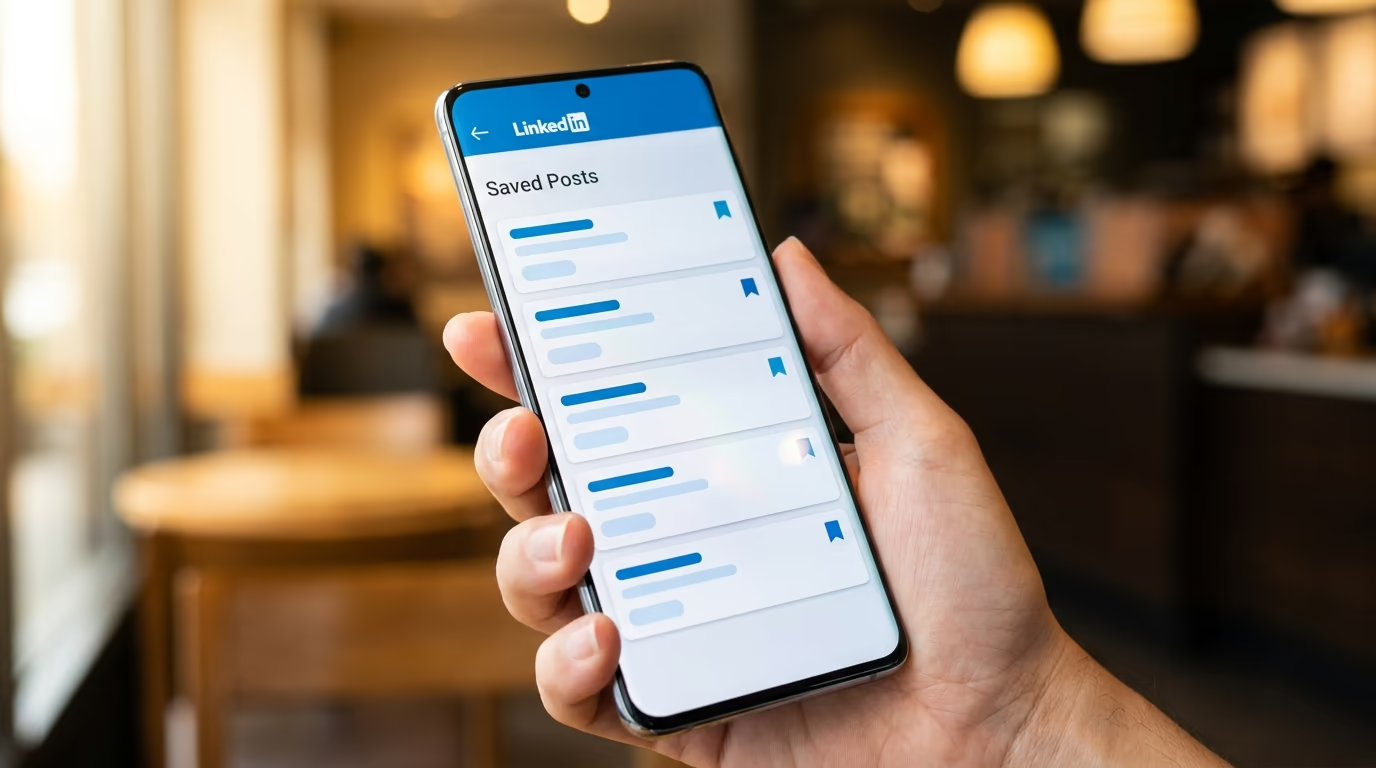
LinkedIn lets you save any post, article, or job listing for later with a single tap, but the platform buries the saved collection in a place most people never think to look. The save button is right there on every post (the small bookmark icon in the top-right corner), and thousands of users tap it every day without ever going back to read what they saved because they can't figure out where LinkedIn put it.
The actual location has changed several times over the years. LinkedIn moved it from the profile page to a dedicated section called My Items, then shuffled the navigation so that finding it requires a different path on desktop and mobile. If you search "where are my saved posts on LinkedIn" and land on a 2023 article, the screenshots will point you to a menu that no longer exists.
This article covers the current 2026 location on both desktop and the mobile app, walks through how to save and unsave content, explains the types of content you can bookmark, and then goes beyond the basics into something competitors skip entirely: how to actually use your saved posts as a content creation system rather than a digital junk drawer. LinkedGrow is a LinkedIn content creation and scheduling tool that can turn your best saved inspiration into polished posts, but the steps below work regardless of the tools you use.
If you just want the quick answer, your saved posts live in My Items on desktop (left sidebar bookmark icon or linkedin.com/my-items/saved-posts) and under Resources > Saved posts and articles on mobile. The rest of this article explains every detail and shows you how to get real value out of the feature.
How do you save a post on LinkedIn?
Saving a post on LinkedIn takes two taps and works the same way on desktop and mobile. Every post in your feed has a three-dot menu icon in the upper-right corner (the "more" button), and tapping it reveals a dropdown with "Save" as one of the options. Select it, and LinkedIn adds that post to your saved collection immediately without any confirmation dialog or animation.
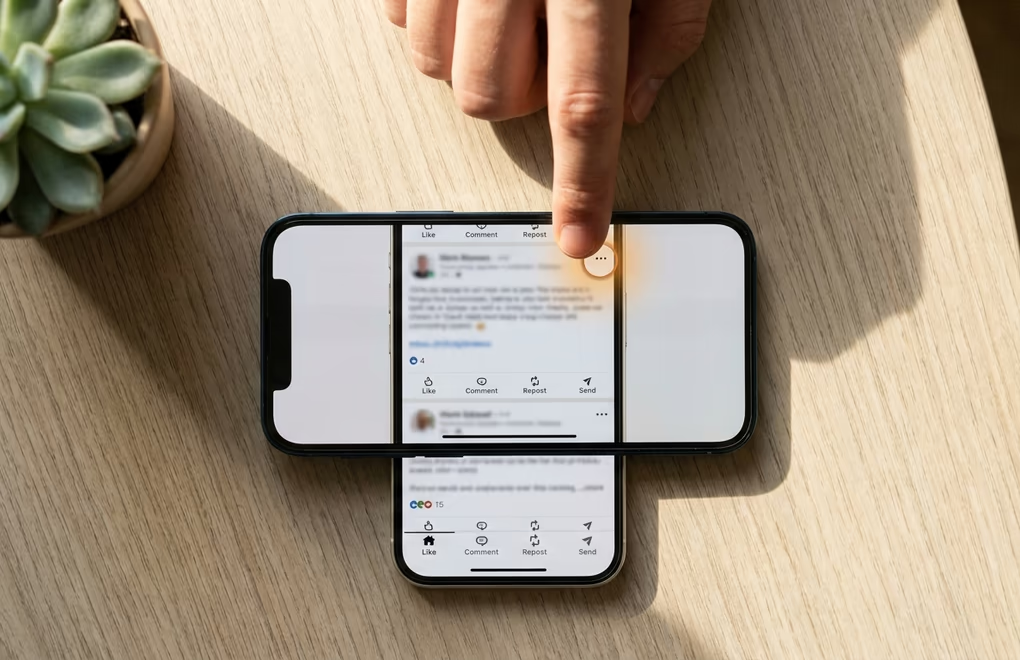
On desktop, you can also look for a small bookmark icon that appears in the upper-right corner of some posts. This icon is a shortcut that does the same thing as the three-dot menu method. Clicking it once saves the post (the icon fills in), and clicking it again unsaves it. The bookmark icon doesn't always appear on every post, though, so the three-dot menu is the reliable fallback.
On the mobile app, the process is identical. Find the post in your feed, tap the three dots in the upper-right corner, and select "Save" from the menu. A brief confirmation message flashes at the bottom of the screen saying the post was saved. You can save regular text posts, articles, carousels, videos, polls, newsletter editions, job listings, and event announcements. The only things you can't save are individual comments and direct messages.
One thing worth knowing: saving is completely private. The author of the post doesn't get a notification, and nobody on your network can see what you've saved. This makes it different from liking or reacting, which are visible to your connections and the post's author. You can quietly save a competitor's content, a recruiter's job listing, or a piece of industry research without anyone knowing.
How do you find saved posts on LinkedIn on desktop?
On a desktop browser, your saved posts live inside a section called My Items. There are two ways to get there, and both take about 3 seconds once you know where to look.
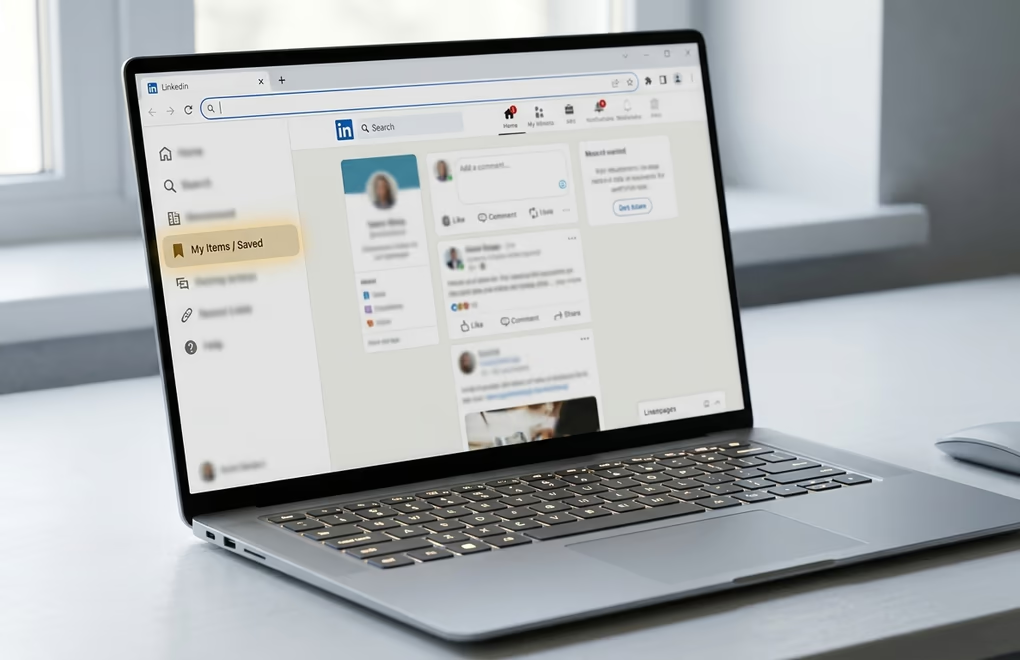
The fastest route is the left sidebar on your LinkedIn homepage. When you're on linkedin.com/feed, look at the left panel below your profile card. You'll see a small bookmark icon with the label "My Items" or "Saved Items" (LinkedIn has been testing different labels). Click it, and you land on a page listing every post, article, and job you've ever saved, sorted from newest to oldest.
The second route is typing the URL directly into your browser: linkedin.com/my-items/saved-posts. This is actually the most reliable method because it works regardless of whether LinkedIn is showing you the sidebar link on a given day. Some users report that the sidebar bookmark icon disappears depending on screen resolution or A/B testing, but the direct URL always works. You can bookmark that URL in your browser for instant access every time.
Once you're on the My Items page, you'll see tabs or filters at the top that let you switch between saved posts, saved articles, and saved jobs. Each category has its own list. LinkedIn doesn't mix them together, so if you saved a long-form article (the kind published through LinkedIn's built-in publishing tool), it shows up under the Articles tab rather than the Posts tab. This trips up a lot of people who save an article but then look for it under Posts and think it vanished.
How do you find saved posts on the LinkedIn mobile app?
The mobile app hides saved posts behind a different navigation path than desktop, which is why so many people think the feature doesn't exist on their phone. It does, and here is exactly where to look.
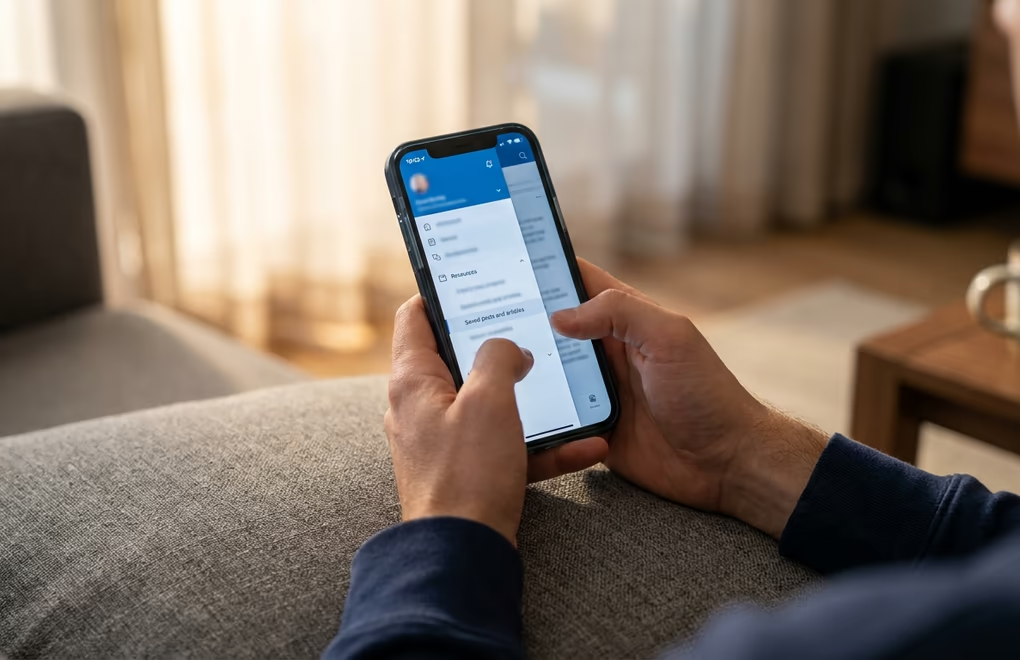
Open the LinkedIn app on iOS or Android and tap your profile picture in the upper-left corner of the screen. This opens a slide-out menu (on some versions it takes you to your profile page directly). Scroll down to the Resources section and look for "Saved posts and articles". Tap it, and you'll see your full saved collection, same as the desktop version but formatted for a phone screen.
If you don't see the Resources section, you might be running an older version of the LinkedIn app. Update it through the App Store or Google Play, and the menu structure should match. LinkedIn occasionally moves menu items around during interface updates, so if the exact label changes, look for anything mentioning "Saved" or "My Items" in the profile menu area.
A quicker mobile shortcut is to type linkedin.com/my-items/saved-posts directly into your phone's browser (Safari, Chrome, or any other). Even if you normally use the app, the mobile browser version shows the same saved posts page, and you can add it to your home screen for one-tap access. This is especially useful when the app's navigation changes between updates and you lose track of where LinkedIn moved the setting.
How do you organize and manage your saved posts?
LinkedIn doesn't offer folders, tags, or any built-in sorting system for saved posts. Everything dumps into a single reverse-chronological list, and the only native option is to unsave items you no longer need. That means if you save 200 posts over 6 months, finding a specific one means scrolling through the entire list manually. There's no search bar inside the saved posts view.
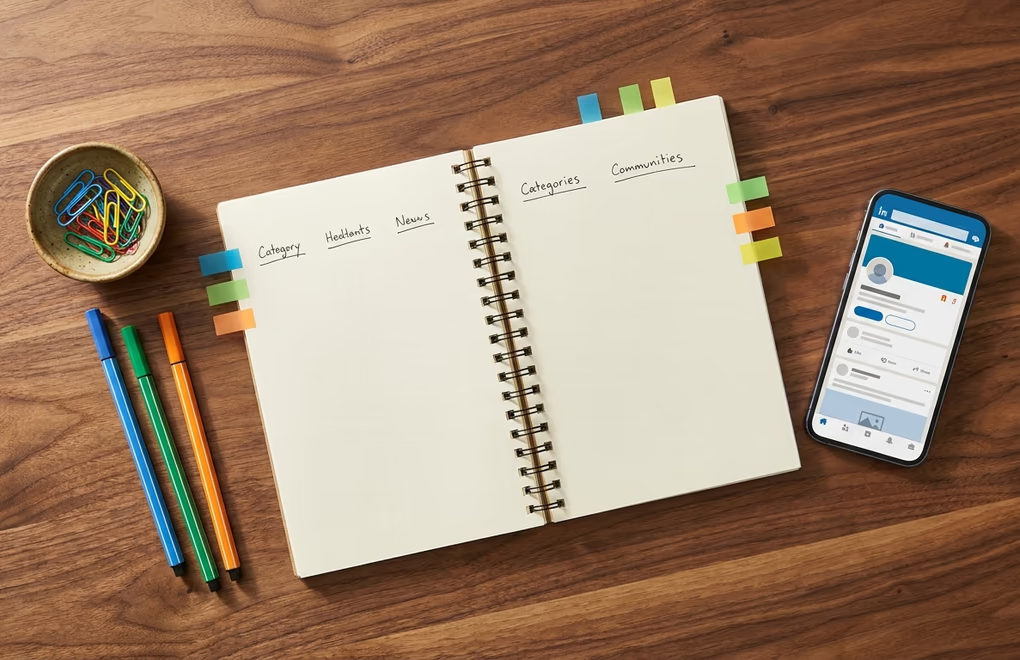
The most effective workaround is a weekly triage habit. Set a recurring 15-minute block every Friday (or whichever day works) to open your saved posts and process them. For each saved post, do one of three things: act on it now (reply, share, reference it in your own content), move the important information somewhere more permanent (a Notion page, a Google Doc, your content calendar), or unsave it because the moment passed and you no longer need it. Treat your saved posts collection like an inbox that needs regular emptying rather than an archive that grows forever.
Another approach is to keep a simple spreadsheet or document with categories (content inspiration, leads to follow up with, job opportunities, industry research) and paste the LinkedIn post URL into the right category as you save them. This gives you the folder structure LinkedIn doesn't provide. The downside is the extra step of copying the URL each time, but if you're someone who saves 10 or more posts per week, the 5 seconds of categorization saves you minutes of scrolling later.
Third-party browser extensions like Dewey and LinkedMash also exist for power users who want automatic export and categorization. These tools pull your saved posts into their own interface where you can search, tag, and sort. They work well, but they depend on browser extensions that require permissions to access your LinkedIn data, so evaluate the privacy trade-off before installing one.
How can you turn saved posts into your own content ideas?
This is where most guides stop, and where the real value of saving posts begins. Saving without a system turns your collection into a graveyard of good intentions. Saving with a plan turns it into a running list of content angles, proven formats, and audience signals that make creating your own posts dramatically faster.

Start by categorizing what you save into three buckets as you go. The first is format inspiration: posts where the structure itself caught your eye, whether that's a specific hook pattern, a carousel layout, a storytelling arc, or a poll format that generated hundreds of comments. You aren't saving these for the topic but for the skeleton you can reuse with your own subject matter. When you sit down to write and feel stuck on how to structure a post, open this bucket and borrow the format.
The second bucket is topic triggers: posts where the subject sparked your own take on the matter. Maybe someone posted about hiring practices and you disagree, or somebody shared a process that you do differently, or a news item in your industry made you think of an angle nobody else covered. These saved posts work as starting points for original content where you add your perspective, experience, or data. The saved post gives you the prompt, and your own knowledge gives you the post.
The third bucket is proof of demand: posts that got high engagement on a topic you know well. If a post about remote work challenges earned 500 comments and you have years of remote management experience, that's a clear signal that the audience wants more on that topic and you're qualified to deliver. Save these as evidence that a topic resonates, then write your version when you're ready.
Tools like LinkedGrow's voice training can take this further by analyzing the posts you admire and helping you generate content in your own style. You feed it samples of your writing, and then when you spot a saved post with a format or angle you want to riff on, the AI drafts a version that sounds like you rather than a generic template. This closes the gap between "I saved something interesting" and "I published my own take on it" from days to minutes.
How should different professionals use LinkedIn saved posts?
The save feature is the same for everyone, but the strategy behind it changes depending on what you're trying to accomplish on LinkedIn. A content creator, a salesperson, and a job seeker should each be saving different types of content and reviewing their saved collection with different questions in mind.

Content creators and thought leaders should save posts that represent formats they want to test, hooks that stopped their scroll, and topics that generated outsized engagement in their niche. The weekly review turns into a content planning session: pick 2 or 3 saved posts that inspired you, strip out the format or angle, and draft your own version for the coming week. If you use a scheduling tool, you can go from saved inspiration to a queued post in the same sitting.
Salespeople and business developers should save posts from prospects and target accounts. When a prospect shares a post about a challenge your product solves, saving it gives you a conversation starter for your next outreach message. Instead of a cold "I saw your company" opener, you can reference a specific post they wrote and add genuine value. Save company announcements, hiring posts (signals of growth), and complaint posts about problems you can fix. Review weekly and move the warmest leads into your CRM or social selling workflow.
Job seekers should save job listings, posts from hiring managers at target companies, and company culture content that gives them material for cover letters and interview prep. When a hiring manager at a company you admire posts about their team's values or a project they just shipped, saving that post means you can reference it directly in your application or interview, showing that you follow the company closely and care about what they're building.
Coaches and consultants should save client pain points: posts where someone in their target audience describes a struggle, asks for advice, or shares a result they're unhappy with. These saved posts become the raw material for content that speaks directly to proven pain points rather than guessing what the audience cares about. A coaching post that responds to a real frustration you saved last week will always outperform one written in the abstract.
Does saving posts affect the LinkedIn algorithm?
LinkedIn treats saves as a meaningful engagement signal, though the exact weight compared to likes, comments, and shares isn't publicly documented. What LinkedIn has said is that the algorithm considers "dwell time" (how long someone spends on a post) and saves as indicators that content provides lasting value rather than surface-level entertainment. A post with many saves relative to its impressions tells LinkedIn that people found it worth returning to, which can extend its distribution window in the feed.

For content creators, this means posts that earn saves tend to reach more people over a longer period. Educational content, step-by-step tutorials, data breakdowns, and reference material (checklists, frameworks, templates) naturally attract more saves than opinion posts or personal stories. If you check your LinkedIn analytics and see certain post types earning higher save rates, that tells you exactly what your audience considers valuable enough to bookmark.
On the reading side, saving posts also shapes your own feed. LinkedIn uses your save behavior (alongside what you like, comment on, and spend time reading) to figure out what topics and content types to show you more of. If you save 10 posts about AI in marketing over a month, expect to see more AI-in-marketing content in your feed going forward. This feedback loop means that intentional saving doesn't just organize information for you, it also calibrates what LinkedIn surfaces to you in the future.
One caveat: LinkedIn has never confirmed that save counts are publicly visible to anyone other than the author. In late 2025, some users reported seeing save counts on certain posts, but this appeared to be a limited test that LinkedIn rolled back. As of mid-2026, your saves remain private, and authors can see aggregate save counts in their post analytics but cannot see who specifically saved their content.
Build a saved posts system that works for you
The save button is one of LinkedIn's most useful and most underused features. Finding your saved posts in 2026 is straightforward once you know the path: My Items on desktop, Resources on mobile, or just bookmark linkedin.com/my-items/saved-posts and skip the navigation entirely. The bigger win is treating your saved collection as an active tool rather than a passive bookshelf.
Set a weekly review cadence, sort what you save into categories that match your goals (content ideas, sales leads, job opportunities, industry research), and act on each saved post within a week or two before it goes stale. If you're creating LinkedIn content regularly, your saved posts become a running idea bank that answers the "what should I post about?" question before it even comes up.
LinkedGrow helps you go from inspiration to published post by combining AI-powered content ideation, voice training, and a scheduling calendar that turns your best saved ideas into a consistent posting rhythm. Try it free for 7 days with everything included and see how much faster content creation gets when you pair your saved inspiration with the right tools.
Frequently asked questions about LinkedIn saved posts
Your saved posts are completely private. Nobody else can see your saved collection, and the original author doesn't receive a notification when you save their post. The save action is invisible to everyone except you, which makes it different from reactions or comments that show up publicly on the post. You can save posts from competitors, job listings, or anyone else without them ever knowing.
LinkedIn doesn't publish an official limit on saved posts. Users have reported saving hundreds of posts without running into a cap. However, LinkedIn does automatically remove saved posts after a certain period if the original post is deleted by the author or removed by LinkedIn. There's no bulk-save feature, so each post needs to be saved individually as you come across it in your feed.
You can save regular feed posts, articles published on LinkedIn, job listings, events, and newsletter editions. Videos, carousel documents, and polls can all be saved as long as they appear as standalone posts in the feed. You cannot save individual comments, direct messages, or profile pages. Job listings have their own separate saved section within LinkedIn Jobs, distinct from the general saved posts area.
Saved posts disappear when the original is deleted. If the person who created a post removes it or if LinkedIn takes it down for violating community guidelines, the post vanishes from your saved collection as well. LinkedIn saves a reference to the original post rather than making a copy, so the saved item relies on the original staying live. If you find content you want to keep permanently, copy the text or take a screenshot before saving it.
To unsave a post, go to your saved posts collection in My Items, find the post you want to remove, and click or tap the bookmark icon again or select the three-dot menu and choose Unsave. You can also unsave directly from your feed if you come across a post you previously saved by tapping the three dots in the upper right corner and selecting Unsave, which removes it from your collection immediately.
The post you keep meaning to write takes four minutes here.
LinkedGrow turns a link, a video or a rough idea into a LinkedIn post written in your own voice, then puts it in the calendar for the morning your audience is awake.
Start free for 7 days