

To change your LinkedIn URL, open your own profile, click Edit public profile & URL in the top right, and edit the custom part that sits after linkedin.com/in/ so it reads as your name instead of a string of random numbers. On the mobile app the same setting lives behind your profile photo, the More menu, and Contact info. Either way the change takes about a minute, and a clean link like linkedin.com/in/janedoe is what you drop on a resume, an email signature, or a business card without wincing.
That default URL LinkedIn hands you is ugly for a reason. It is built from your name plus a random block of letters and numbers so it stays unique, which is fine for a database and terrible for a human trying to read it out loud. A custom URL fixes that in one edit, and it quietly helps you show up when someone searches your name, since a clean, keyword-friendly link is easier for search engines to connect to you than a scrambled one.
This guide covers the exact click path on desktop and on the mobile app, what makes a good custom URL and what to do when your name is already taken, the rules most people get wrong (how many changes you get, the character limits, and what happens to your old link), and how to change a company page URL, which follows a different path. Every step and every limit here comes straight from LinkedIn's own help pages rather than from guesswork, checked against how the settings work right now.
One thing worth settling up front: a tidy URL is a small piece of a profile people actually act on, not the whole job. It gets the click, then your headline, photo, and posts decide what happens next. That second half is where LinkedGrow fits in, once the link itself is clean and worth sharing.
What is a LinkedIn URL, and why change the default one?
A LinkedIn URL is the web address of your profile, the part that reads linkedin.com/in/ followed by your custom handle. When you first sign up, LinkedIn appends a random string to your name so the address stays unique, which is why so many profiles carry a link like linkedin.com/in/jane-doe-8a4b21739. Changing it to a clean linkedin.com/in/janedoe makes the link readable and easy to say on a call.

The reasons to fix it stack up fast. A custom URL looks more professional the second anyone sees it, so a hiring manager or a prospect reads competence into the small detail before they even open your page. It is far easier to share, whether you are typing it into a resume, saying it out loud at an event, or printing it on a card. And it gives you a mild search edge, because a name-based link is a cleaner signal to Google that this page is you, which helps your profile surface when people look you up.
Think of the URL as the front door rather than the house. It is one of the first things a serious profile locks down, alongside a real photo and a headline that says what you do. If you want the rest of the page working as hard as the link, our guide to LinkedIn profile optimization walks through the headline, About section, and keywords, and the profile picture basics cover the photo that sits right beside your name.
How do you find your LinkedIn URL?
Your LinkedIn URL is the web address in your browser bar whenever you are viewing your own profile, and you can copy it in a couple of clicks from the same public profile panel where you later edit it. You do not need a custom URL to share your profile, since the default long link works as a link just fine, but you do want to know where it lives before you clean it up.

On desktop, open your profile and read the address bar, or click Edit public profile and URL, where your current link sits in the top right with a button to copy it to your clipboard. On the mobile app, open your profile, tap the More icon, and choose the option to copy or share your profile link. To grab someone else's URL rather than your own, open their profile, tap the same More menu, and copy the link from there, which is handy when you want to save a contact or tag them somewhere off-platform.
How do you change your LinkedIn URL on desktop?
On desktop you change your LinkedIn URL from the public profile settings, which sit in the top right corner of your own profile page. The whole edit takes under a minute once you know where the control hides, and it is the same path whether you are on a Mac or a PC in any browser.

- Click the Me icon at the top of your LinkedIn homepage, then click View Profile.
- On your profile, find Edit public profile & URL in the panel on the right and click it.
- In the top right, under Edit your custom URL, click the pencil Edit icon next to your current profile URL.
- Type the last part of your new URL in the text box, the piece that comes after linkedin.com/in/.
- Click Save, and your new link is live straight away.
If the box rejects what you type, the handle is either taken or breaks a rule, and the fix is usually a small variation rather than a rethink. While you are on that settings screen, it is a good moment to sanity-check the rest of your public profile, since the same page controls what shows to people who are not signed in. A matching LinkedIn headline does more for a first impression than the link, so it is worth a look in the same sitting.
How do you change your LinkedIn URL on the mobile app?
You can change your LinkedIn URL on the mobile app too, but the setting is buried deeper than on desktop, which is why most people give up and reach for a laptop. It sits behind your Contact info rather than in an obvious edit menu, so the trick is knowing to go through there.
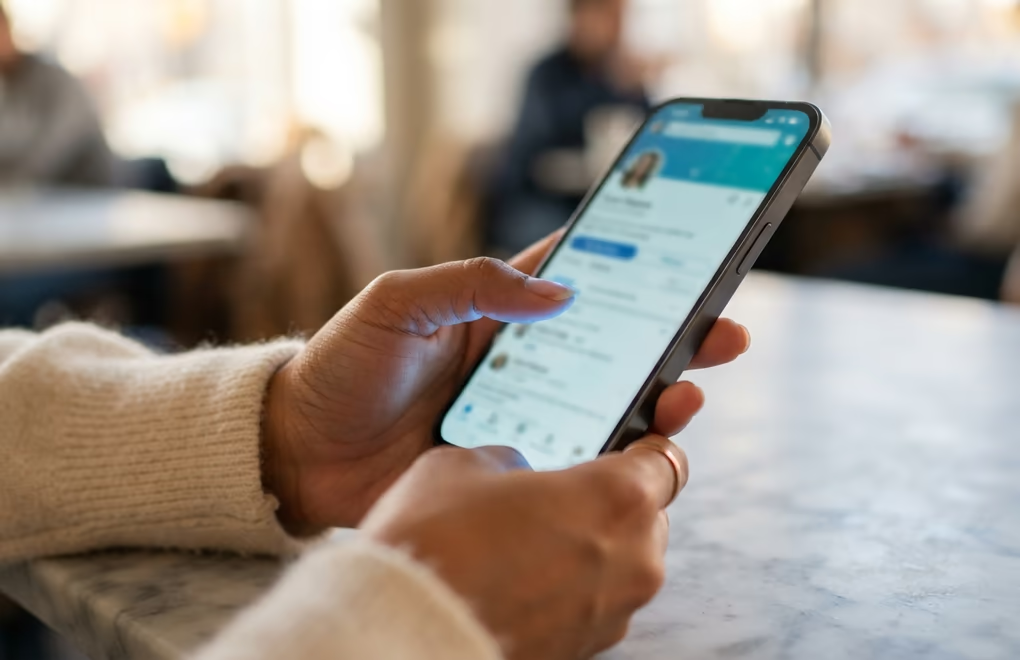
- Tap your profile photo, then tap it again to open your full profile.
- Tap the More icon next to the Add section button.
- Tap Contact info, then tap the Edit pencil in the upper right.
- Tap your Profile URL, which sends you to the public profile settings.
- Under Edit your custom URL, tap the Edit icon, type your new handle, and tap Save.
The mobile path changes now and then as LinkedIn reshuffles the app, so if a step looks different, update to the latest version first. When the menus still will not cooperate, switch to a desktop browser, where the layout stays the most stable and the custom URL control is easier to reach. The end result is identical no matter which device you use, so pick whichever is less fuss in the moment.
What makes a good custom LinkedIn URL?
A good custom LinkedIn URL is your real name, kept as short and plain as the platform allows. The goal is a link a stranger could hear once and type correctly, so first-last with no separators is the gold standard, and a single hyphen between them is the clean fallback when the joined version is gone.

A default handle like linkedin.com/in/jane-doe-8a4b21739 tells a reader nothing and invites a typo, while linkedin.com/in/janedoe is something a person can hear at a networking event and type from memory an hour later. That difference is the entire point of the edit. Aim for a link you would happily read aloud on a podcast or print on the back of a card, since those are the exact moments a clean handle pays you back and a messy one quietly costs you.
Skip anything that dates or clutters the link. Random numbers read as an auto-generated account, birth years age you the moment they land on a resume, and job titles inside the handle break the day you switch roles. If you can, match the handle you use on other platforms so a contact who knows one can guess the rest, which keeps your name consistent everywhere people look you up. Consistency like that is a quiet part of how you build a personal brand on LinkedIn, where every touchpoint points back to the same person.
When your name is already claimed, and common names usually are, you have a handful of good moves before you settle for a number. Add a middle initial or your full middle name, since janemdoe or jane-marie-doe still reads cleanly. Bolt on what you do when it fits your brand, so janedoe-copywriter or janedoe-cfo works and doubles as a keyword. And if you go by a nickname professionally, use the name people actually call you rather than the one on your passport. Any of those beats trailing digits, which are the one thing to avoid.
How often can you change your LinkedIn URL, and what are the rules?
You can change your custom LinkedIn URL up to 5 times within any 6-month window, so it is not a setting you can fiddle with endlessly. The handle itself has to be 3 to 100 characters, it can only use letters and numbers with no spaces or symbols, and it cannot contain the word LinkedIn. Case does not matter, since the address is not case sensitive, so JaneDoe and janedoe point to the same profile.

Your old URL does not disappear the instant you change it. LinkedIn keeps the previous one pointing at you for 6 months unless you manually unlink it, so anything already printed or linked keeps working for a grace period. After that the old handle is released and another member can claim it, which is the real reason to update your resume, signature, and bios soon rather than someday. You can read the exact rules on LinkedIn's public profile URL help page, straight from the source.
A company page URL follows different rules, and it is a super admin job, not something a regular follower can touch. From the Page super admin view you click Edit page, open Page info, edit the LinkedIn Public URL, and save. The catch is that a page URL is not redirected the way a personal one is, so the old address can be claimed by another page the moment you change it. That makes it a change to plan rather than improvise, because every tagged post, email signature, and link pointing at the old handle goes stale at once.
Where should you actually use your custom LinkedIn URL?
A custom URL only earns its keep when you put it where people meet you, which means far more places than your profile. The obvious homes are your email signature, your resume or CV, and your business cards, where a clean link invites a click and a scrambled one gets ignored. Add it to your other social bios and any speaker or author blurb, so wherever someone finds you, the path back to your profile is one tidy line.
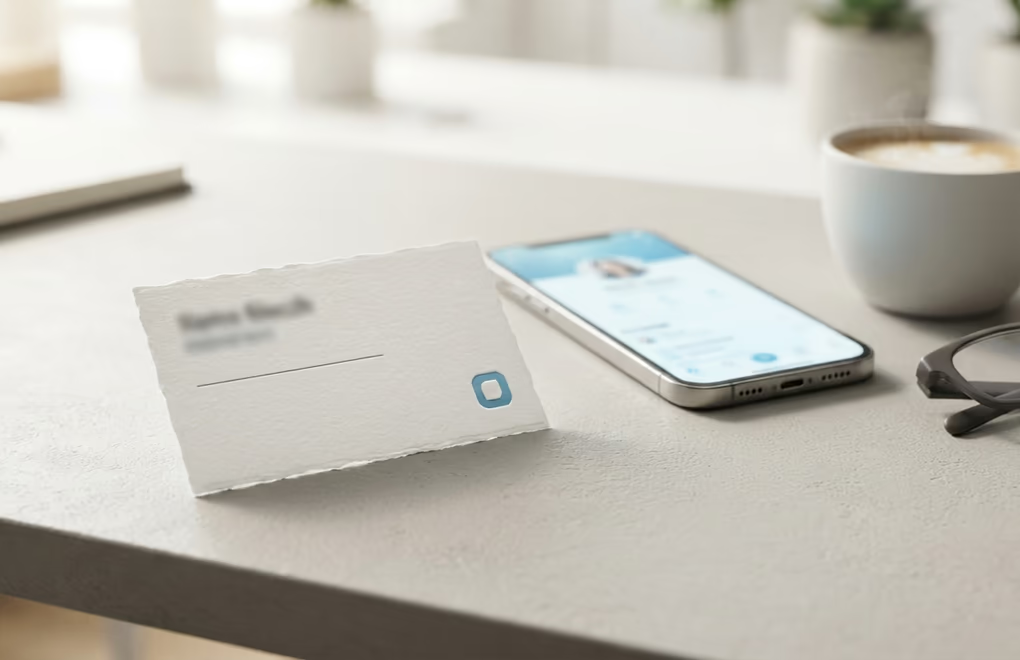
There are a couple of higher-value spots worth the extra minute. A Connect on LinkedIn button on your website or portfolio turns visitors into followers, and a QR code that points to your custom URL is perfect for a conference badge, a booth, or the last slide of a talk. When you are reaching out directly, dropping a clean link is smoother than making someone search your name, which is one small habit inside a wider approach to how you network on LinkedIn without leaning on cold requests.
All of that traffic lands on the same page, so the profile has to be worth the visit and the posts have to keep people once they follow. A clean URL gets the click, then your content decides whether they stay, and that is the half where LinkedGrow does its work. It drafts posts in your own voice using voice training on a few of your past posts and runs on your own AI key for a typical $2 to $4 a month, so the people who found you through that tidy link get content that actually sounds like you.
Lock in a clean URL, then make the profile worth the click
Changing your LinkedIn URL is a one-minute cleanup with a long payoff: open Edit public profile and URL, swap the random string for your name, and save. Keep the handle short and name-based, remember you get 5 changes in 6 months so pick one you will keep, and update your resume and signatures before the old link is freed up. That is the whole job on the profile side.
The link is the easy win, and the harder, more valuable work is filling the page it points to with posts worth reading. If you want that half handled in your own voice and scheduled for when your network is online, LinkedGrow drafts and schedules content on your own AI key for a few dollars a month, and you can start a 7-day Pro trial you can cancel in one click. Fix the URL today, then give people a reason to follow the person behind it.
Frequently asked questions about changing your LinkedIn URL
Open the app and tap your profile photo, then tap it again to open your full profile. Tap the More icon next to Add section, choose Contact info, tap the Edit pencil, then tap your profile URL to reach the public profile settings. Edit the custom part after your name and save.
LinkedIn lets you change your custom public profile URL up to 5 times within any 6-month window. That is plenty for a one-time cleanup, but it means you can't keep tweaking it, so settle on a version you'll keep before you save.
Your previous URL stays linked to you for 6 months unless you unlink it, so old links keep working for a while. After that window it is released and someone else can claim it, which is why you should update your resume, email signature, and bios soon after the change.
Try close variations that still read as you: add a middle initial or middle name, join first and last with no separator, or add what you do, like janedoe-copywriter. Keep it short and name-based, and avoid random numbers, which look like an auto-generated account.
Yes, a Page super admin can. Open the super admin view, click Edit page, open Page info, then edit the LinkedIn Public URL and save. Unlike personal profiles, the old page URL is not redirected and can be claimed by another Page, so change it carefully and update every link that points to it.
The post you keep meaning to write takes four minutes here.
LinkedGrow turns a link, a video or a rough idea into a LinkedIn post written in your own voice, then puts it in the calendar for the morning your audience is awake.
Start free for 7 days